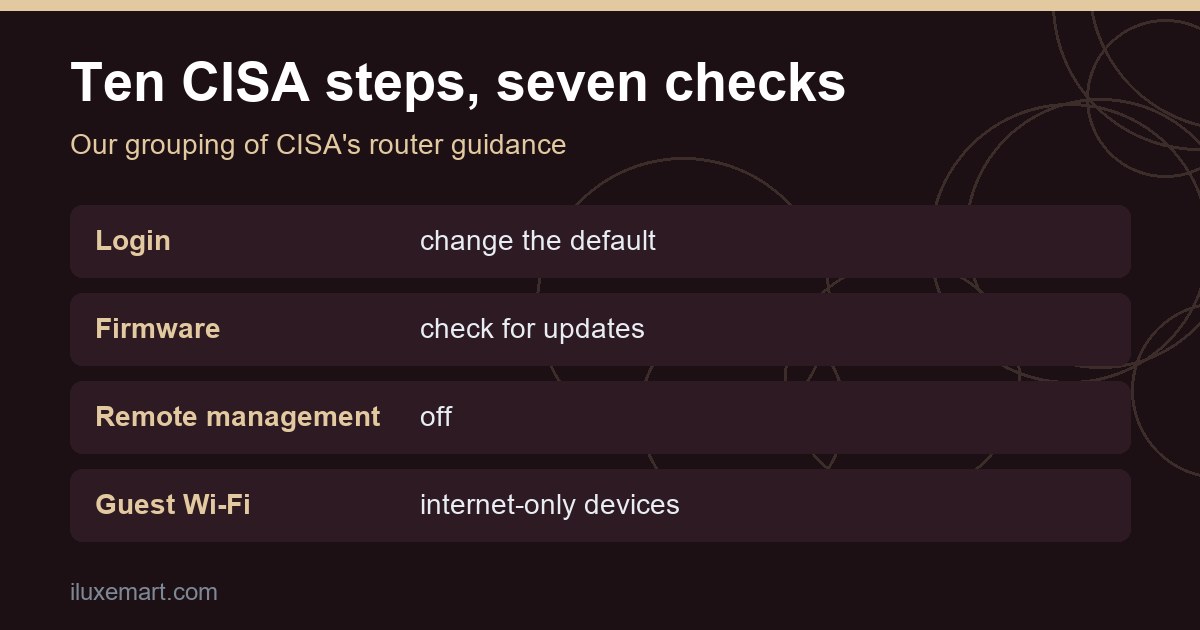
The router privacy settings that CISA lists as essential come to ten steps. We group them into seven checks, and the grouping is ours. The seven areas are the router login, firmware, Wi-Fi encryption, remote management, WPS and UPnP, guest Wi-Fi, and the Wi-Fi name, passphrase and router location. We tested nothing. This is a reading of CISA’s Project Upskill Module 5, plus one Home Assistant page for what can break Matter devices in Home Assistant. We name no prices and no products.
Two scope points up front. CISA’s page shows no publication date, and it is especially relevant to high-risk communities. It says “Each router is different.” so follow your own router’s user guide. Where a page is silent, we say we could not confirm. Where a point is our own reasoning, we mark it in our view.
One more paragraph, because it matters. This is generic hardening advice from CISA. We make no claim about any particular router brand or vulnerability. For specific advisories, see our existing post on checking your router model.
Table of Contents
Router privacy settings for a smart home: 7 checks
CISA calls these the minimum essential steps for your router. For each check we give what CISA says, then why it may matter for smart devices.
1. Change the router login
CISA says to change your router login username and password, because default router information may be publicly available. It asks for a password that is long, random and unique. Its Do Not list also says not to use the same username and password for your router account and administrative account, so keep those two separate.
In our view, a weak router login is the first of the router privacy settings to fix, because it puts every device behind the router at risk.
2. Check firmware and install automatic updates if possible
CISA says routine updates protect against known vulnerabilities, and that some routers allow automatic updates. Its Do list says to update regularly and install automatic updates if possible.
We could not confirm which routers offer automatic updates or how a firmware update affects connected devices.
3. Check Wi-Fi encryption
CISA says to check that your router uses WPA3 Personal or WPA2 AES (also shown as WPA2 Pre-Shared Key, WPA2 PSK or WPA2). It calls these the only two forms of encryption it considers safe against threat actors trying to see what you send over your network.
An open network, or one using WEP, WPA or WPA2 TKIP, should be upgraded. CISA’s advice is to contact the ISP that provided the router and request an upgrade, or consider buying a new router. That is CISA’s advice, not ours, and we give no product picks.
In our view, check a device’s own documentation before changing encryption, because older smart devices may support only older settings. We could not confirm which devices do.
4. Turn remote management off
CISA describes remote management as a setting that lets you log in to your router over the internet to make changes. It says disabling it can prevent threat actors from making changes to your router without first connecting to your network, wirelessly or by cable.
In our view, this is a different thing from remote access to your smart home, which means reaching your devices while you are away. That is a separate setup, covered in our guide to Home Assistant remote access without Nabu Casa. We could not confirm what each router calls the remote management setting, so look in your user guide.
5. Turn WPS and UPnP off
CISA says to disable Wi-Fi Protected Setup (WPS), because it increases the likelihood that a threat actor could gain unauthorized access to your Wi-Fi network.
It also says to disable Universal Plug and Play (UPnP). Its description is that UPnP makes it easy to connect smart devices such as a smart speaker or dishwasher, but threat actors can use it to spread malware to devices on your network and control them remotely. CISA says that in some cases you may need UPnP on to add a device, and that you should turn it off after.
We could not confirm which devices need UPnP after setup, or what breaks when it is off. In our view, test one thing at a time and note the undo step before you change anything: switch one setting, check the devices you rely on, and write down how to switch it back.
6. Use guest Wi-Fi for internet-only devices
CISA says to enable guest Wi-Fi if your router has it, with its own long, random, unique password, used by anyone who does not routinely connect to your home Wi-Fi. It also says to put smart home and other IoT devices on it “if internet access is the only thing they require.” Its stated benefit is that this stops those devices discovering other devices on your network, accessing your router settings, and potentially introducing vulnerabilities.
In our view, devices that need to talk to other things on your network, such as a hub, may not fit that description. In our view, there is also a tension. CISA favours separating devices, while the Home Assistant Matter page says to try to keep your network as simple and flat as possible when commissioning fails or devices drop out. We could not confirm whether a router’s guest network affects Matter discovery. The Home Assistant page’s caveat is about VLANs, multicast filtering and IGMP snooping. Our guide to an IoT VLAN or guest network covers what isolation can break, and the next section covers the Matter detail.
7. Rename the network, set a strong passphrase, and mind the location
On the name, CISA says to change the default SSID, because the default could potentially alert a threat actor to known vulnerabilities for your router. It says not to include sensitive or identifying personal information in the name.
On the passphrase, it suggests 5 to 7 unrelated words totalling at least 16 characters, not used for any other account. In our view, a passphrase is easier to type into a smart device setup screen than a random string, though CISA does not say so.
On location, CISA says anyone with physical access could factory reset the router and use the default information shown on it to get in. It says not to leave the router somewhere easily accessible to others.
When a router setting can break a smart device
Some settings can get in the way of devices, and the Home Assistant Matter page says so for Matter. Scope matters here: it speaks about Matter devices in Home Assistant, and we could not confirm how other setups behave.
The page says Matter relies on local IPv6 and mDNS (multicast traffic) travelling freely in your network. It says Matter is designed for regular residential networks and may not integrate well with enterprise networking solutions like VLANs, multicast filtering and (malfunctioning) IGMP snooping. It also says a router or access point setting to “optimize” multicast traffic can harm discovery traffic from Matter devices. Its advice is to try to keep your network as simple and flat as possible, and to keep Wi-Fi Matter devices on the same VLAN as Home Assistant.
In our view, this is the reason to change your router privacy settings one at a time. If something stops working, you know which change to undo. For wider buying and network questions, see our Black Friday smart home checklist. If you are thinking about replacing hardware, our mesh Wi-Fi buying guide covers the questions to ask.
Your router privacy settings checklist
Print this and tick each item against your own router’s user guide.
- Login: default username and password changed; router and admin credentials differ.
- Firmware: checked for updates; automatic updates on if possible.
- Encryption: WPA3 Personal or WPA2 AES.
- Remote management: off.
- WPS and UPnP: WPS off; UPnP off after adding a device, if it was needed.
- Guest Wi-Fi: on, with its own password, for devices that only need internet.
- Name, passphrase, location: no personal details in the SSID; 5 to 7 unrelated words, 16 characters or more; router out of easy reach.
Honest limits of these router privacy settings
- We tested nothing. This is a documentation roundup.
- CISA’s page shows no publication date, and we could not confirm that it is current.
- CISA’s page mentions a Home Network Security blog. That blog did not load for us, so we cite nothing from it.
- We could not confirm which devices need UPnP after setup, or what each router calls each setting.
- The Matter caveat covers Matter in Home Assistant only.
- We cannot promise any setting makes a network safe, and we give no product picks.
- Statements marked in our view are our reasoning, not the sources’.
Your next step
In our view, a sensible order is checks 1, 2 and 4 first. CISA does not rank them. Open your router’s user guide and start with the router privacy settings in checks 1, 2 and 4. Then change the rest one at a time, noting the undo step for each. More privacy-first guides are in our no-subscription smart home guides.
How we checked
We read each page below on 19 November 2026. This is a documentation roundup on router privacy settings for a smart home. CISA lists ten steps, and we group them into seven checks. We did not set up, change or test any router or device. Claims marked in our view are our own reasoning.
Sources read 19 November 2026: CISA, Project Upskill Module 5: Securing Your Home Wi-Fi, Home Assistant, Matter.
More in this series: No-subscription and private smart home guides.