To factory reset smart home device gear before you sell it, the maker pages we read describe two jobs, not one. You remove the device from your account or app, and you reset the device itself. We read pages from Amazon, Google, Philips Hue and Home Assistant on 20 November 2026. We tested nothing, and we give no prices and no product picks.
The order and details differ by maker, so this post summarises each page first and only then draws a pattern. Every step in the maker sections below is that maker’s statement, not something we confirmed on a device. If you are also wondering what a used device is worth, our electronics resale value guide covers that side.
Table of Contents
Remove it first, then factory reset smart home device gear
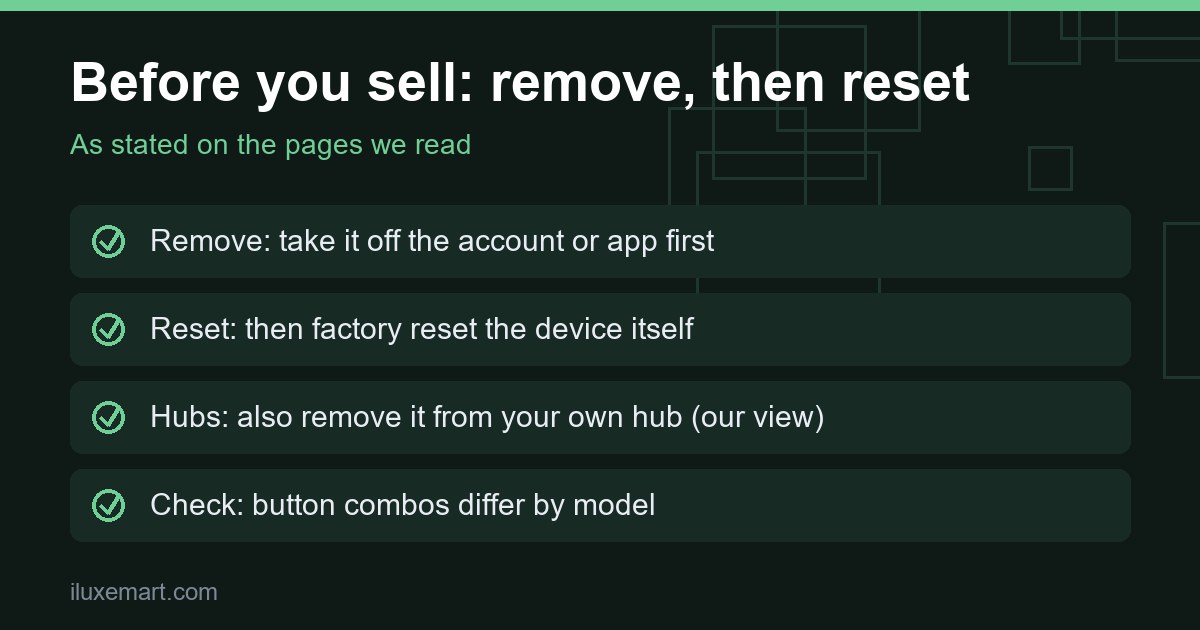
Across the Amazon, Google and Hue Bridge pages, one two-part idea appears; Home Assistant’s docs cover the reset and removal sides separately. One part lives on the maker’s side: the account, app or hub that knows about the device. The other lives on the device: its saved settings and pairings.
Amazon’s page puts it most plainly. Asked whether to reset instead of deregistering before selling, its answer starts with “Do both”. Google’s moving guide lists removal as the step before the reset. Hue’s Bridge page recommends (as an optional step) unlinking the Bridge from your Hue account before the physical reset. Home Assistant’s Zigbee page says Philips Hue bulbs paired to another bridge must be factory reset before they will join ZHA, and that taking them off the old bridge “is not sufficient”.
In our view, each step covers a different gap. Removal deals with the account link, and a reset deals with what is stored on the hardware. If you only factory reset smart home device hardware, the account may still list it. If you only remove it, the device may still hold your settings.
Amazon Echo: deregister, then factory reset smart home device settings
Amazon’s deregister page says deregistering removes a device from your Amazon account and disconnects it from your content and Amazon services. Selling or giving the device away is the first reason it lists. The steps are to sign in, open Devices, choose the device and select Deregister. The page says this covers Alexa-enabled devices such as Echo and Echo Show, plus Kindle, Fire tablets and Fire TV.
One detail matters for families. Amazon says only the registered account, meaning the device owner, can deregister a device. Family members who can see a shared device cannot deregister one registered to another account.
For sellers, Amazon says to deregister first to remove your account access, then perform a factory reset to remove personal content and settings. Amazon’s reason is to protect privacy and let the next owner register the device to their own account.
For Echo devices with a screen, such as the Echo Show, Amazon’s reset page gives two routes. Amazon notes menu items on the Echo Hub and Echo Show 5 may vary. One uses the device buttons: hold the Microphones & Camera Disable/Enable and Volume Down buttons until the Amazon logo appears, which it puts at about 15 seconds. The other is the menu: Settings, Device Options, About this Device, then Reset to Factory Defaults.
That page adds a wrinkle. On the Echo Show (2nd Generation) and Echo Show 10, there is a second option that keeps your smart home device connections, and Amazon says to select plain Reset otherwise. When you factory reset smart home device gear that is leaving your hands, the plain option matches the aim, in our view.
For the Echo (3rd or 4th generation), holding the Action button for 20 seconds resets and keeps smart home connections. Holding the Microphone off and Volume down buttons for 20 seconds gives the factory reset, which Amazon’s note says erases all your personal information and any device and smart home connections. Both reset pages add a tip that deregistering erases all device settings. We did not open Amazon’s pages for other Echo generations.
Google Home and Nest: remove, then factory reset smart home device hardware
Google’s moving guide covers leaving a device for the next resident, which, in our view, is close to selling. For smart speakers and displays, the steps are:
- Open the Google Home app.
- Tap Home, then All devices, then touch and hold the device’s tile.
- Tap Settings, then Remove device, then Remove.
- Perform a factory reset.
Google warns that this clears your data from the device and “can’t be undone”. For the battery Nest Doorbell and Nest Camera, the steps match, plus a warning to cancel any Google Home Premium subscription first.
For other devices set up in the Nest app, the guide says to remove the device from the Nest app and then factory reset smart home device hardware such as a thermostat, which Google says wipes your personal data so the next person can set it up under their own account. In its Nest app section, it also says a Nest Cam does not need a factory reset after removal from the Nest app.
Google’s separate removal page adds what to expect:
- Google says to remove a product from whichever app you first used for it. If you cannot find it in one, check the other.
- Google says removing a camera also erases its stored video history. The page says you can still cancel the Google Home Premium subscription after removal.
- After removing a camera, wait until its light ring pulses blue before unplugging it, or you will need to reset it to get it working again.
- A removed Nest x Yale Lock keeps its existing passcodes, but changing settings needs a factory reset, which clears all passcodes.
The same page says it advises a factory reset for anything you will not use again. On the buyer’s side, the moving guide says a Nest camera already used by another account needs its video history to expire first, which can take up to 60 days.
Philips Hue: how to factory reset smart home device lights and the Bridge
Hue’s pages split the job between the Bridge and the lights.
For the Bridge, Hue lists selling or giving it away as a reason to reset, and says a reset deletes all saved data: rooms, lights, scenes and routines. Its optional but recommended first step is unlinking the Bridge from your Hue account in the app, through Settings, Hue Bridges, then Remove. Hue says this stops the Bridge staying tied to your Hue account once it is reset.
The physical reset follows. Unplug the Ethernet cable, find the small recessed button on the back, hold it with a paperclip or SIM eject tool for 5 to 10 seconds, and wait until the first three LEDs are solid blue. Hue says the process is the same for the Bridge Pro, and that on the Pro a reset removes your Hue account from the device.
The lights have their own page. Hue says that when you factory reset smart home device lighting, Hue says the reset clears your custom settings so the light can be paired to a different Bridge or Bluetooth setup. It lists five methods: the six-character serial number in the app, the app connected to a Bridge, a Hue dimmer switch, a Hue Tap dial switch, or the app in Bluetooth mode. The two switch methods carry a 30-minute window after power-cycling the light.
Hue tells anyone returning, selling or giving away lights to reset them first, citing personal data. Which method applies depends on your setup, and we did not try any of them.
Home Assistant ZHA: factory reset smart home device Zigbee gear
If your devices sit on a hub you run yourself, Home Assistant’s Zigbee Home Automation (ZHA) docs describe the hub side.
The integration page lists a Remove action, zha.remove, which removes a node from the Zigbee network. Its action page says it removes a device by IEEE address, which you find on the device’s page in Home Assistant, and that only administrators can run it. It also warns the removal cannot be undone and the device would have to join the network afresh. We claim nothing about what the Remove button in the interface does beyond these pages.
The reset side, which is how you factory reset smart home device Zigbee gear before handing it on, appears in the same docs almost in passing. The integration page says devices currently or previously on another Zigbee implementation must be reset to factory defaults before joining ZHA, and points to each maker’s documentation for the steps. As examples it gives turning lights on and off up to 10 times, or the reset button or pin that switches usually have.
The clearest warning is in the Hue bulb section. It says bulbs paired to another bridge will not join ZHA unless factory reset, and that taking them off the old bridge “is not sufficient”. It lists reset routes that depend on the bulb version, including a Zigbee remote and the official Android app over Bluetooth for newer bulbs.
This is the buyer’s view, but it shows why the seller’s reset matters. In our view, a Zigbee device that was never reset may not join the next owner’s ZHA setup.
A 5-step checklist to factory reset smart home device gear before selling
This checklist is our own reasoning built on the pages above. Menus and button combinations differ by model, and we tested no device.
- Find the maker’s page for your exact model. Reset combinations differ, as the Echo and Hue pages show. For a brand not covered here, we read nothing, so we cannot say.
- Remove the device from the account or app. Use the owner’s login where the maker requires it, since Amazon says only the registered owner can deregister. Cancel any Google Home Premium subscription on a battery Nest camera or doorbell, as Google’s moving guide says.
- Remove it from any hub you run. If it sits on Home Assistant, take it off the network there too, which in our view applies to ZHA as well. The zha.remove action page says removal is not reversible.
- Factory reset the device itself. Follow the maker’s page, and in our view choose the full reset over any option that keeps connections when the device is leaving your hands.
- Check it is ready for the next owner. Look for the maker’s sign of setup mode, such as the Hue Bridge LEDs turning solid blue. Then note what you did and when.
Amazon’s deregister page and the Hue Bridge page put the account step before the reset, and Google’s moving guide lists removal and reset together.
What we could not confirm
- We tested no device. We confirmed no reset, button combination or menu path on real hardware.
- We did not verify on a device that a reset wipes everything the pages say it removes. No page we read describes how to factory reset smart home device gear as a guaranteed complete erase, and we make no such claim.
- Button combinations and menus differ by model and generation, so check the maker’s page for your exact model.
- We read nothing on other brands. We read little on Matter (one Google line on removing Matter devices) and nothing on Z-Wave devices, phones, or any regulator’s advice.
- The pages show no publication dates, so they may change after 20 November 2026.
- Statements marked in our view are our reasoning, not the maker’s.
Your next step
Pick one device you plan to sell and find the maker’s page for its exact model. Remove it from the account or app, and only then factory reset smart home device settings on the hardware. If you are still choosing which devices to keep in your home, our no-subscription smart home devices guide is a good place to continue.
How we checked
We read each page below on 20 November 2026. This is a documentation read, not a test. We did not buy, set up, remove or reset any device.
Sources read 20 November 2026: Amazon, How to Deregister Your Amazon Device, Amazon, Reset Your Echo Devices with a Screen, Amazon, Reset Your Echo (3rd or 4th Generation), Google, Moving guide for Google Home and Nest devices, Google, Remove a device from your Google Account, Philips Hue, How to reset a Hue Bridge, Philips Hue, How to factory reset Philips Hue lights, Home Assistant, Zigbee Home Automation, Home Assistant, zha.remove action.
More in this series: No-subscription and private smart home guides.