Frigate NVR is, in the words of its documentation, “A complete and local NVR designed for Home Assistant with AI object detection.” In short, it records your cameras on a machine you own and uses AI object detection on your IP cameras, run locally. On the pages we read, we group what it needs into five things (our grouping): suitable cameras, a CPU with certain instructions, enough RAM, a disk, and ideally an object-detection accelerator. We read the Frigate pages listed at the end on 19 November 2026. We tested nothing, and we give no prices and no product picks.
If you are still deciding between a box at home and a cloud service, start with our local NVR vs cloud camera comparison. If you have already chosen local, read on.
Table of Contents
What Frigate NVR does
On the pages we read, the introduction describes the Frigate NVR feature list in plain terms. These are the parts that matter to a beginner.
- Motion first, then objects. It uses a very low overhead motion detection step to decide where to run object detection. The page says this is meant to minimize resource use by only looking for objects when and where it is necessary.
- Recording with retention based on detected objects. Recording uses retention based on detected objects.
- RTSP re-streaming. It re-streams over RTSP to reduce the number of connections to your camera.
- MQTT. It communicates over MQTT for easy integration into other systems.
- Home Assistant. The introduction lists a tight integration with Home Assistant through a custom component.
- A combined camera view. A dynamic view of all tracked cameras.
In our view, the idea behind Frigate NVR is simple. Look cheaply for movement everywhere, and spend the expensive object-detection work only where movement happened. That design is why the hardware advice below focuses so much on the detector.
Frigate Home Assistant: what the integration needs
The Frigate Home Assistant link is the main reason many people look at Frigate NVR in the first place. The integration page calls the official integration the best way to connect Frigate to Home Assistant. Here is what the pages we read say it needs.
- Frigate must be running first. The page says Frigate itself must be installed and running before you set up the integration.
- MQTT. The integration requires the MQTT integration to be installed and manually configured first. MQTT must also be enabled in the Frigate configuration file, and Frigate must be connected to the same MQTT server as Home Assistant. The page says many of the entities the integration creates depend on this.
- Installation route. It is available through HACS as a default repository. You install it there, restart Home Assistant, then add it under Settings, Devices and Services. The page also says you need media_source enabled for the Media Browser to appear.
- A URL. You are asked for the address of your Frigate instance, which can point at the unauthenticated port 5000 or the authenticated port 8971.
- RTSP for live view. The page says the live camera entity requires RTSP, and streams must be reachable on the RTSP port (default 8554).
The entities the page lists are a camera (live stream), an image of the latest detected object, sensors for performance and object counts, switches to toggle detection, recordings and snapshots, and a motion binary sensor per camera, zone or object. It also describes a Media Browser for recordings and snapshots, and casting clips to media devices.
One detail is easy to miss. The installation page says Frigate can run as a Home Assistant App, but that the App is not the same thing as the integration, and the integration is still required either way. We could not confirm anything about how well the pairing behaves day to day, because we did not run it. For other ways cameras reach Home Assistant, see our Matter cameras guide.
1. Cameras for a Frigate NVR setup
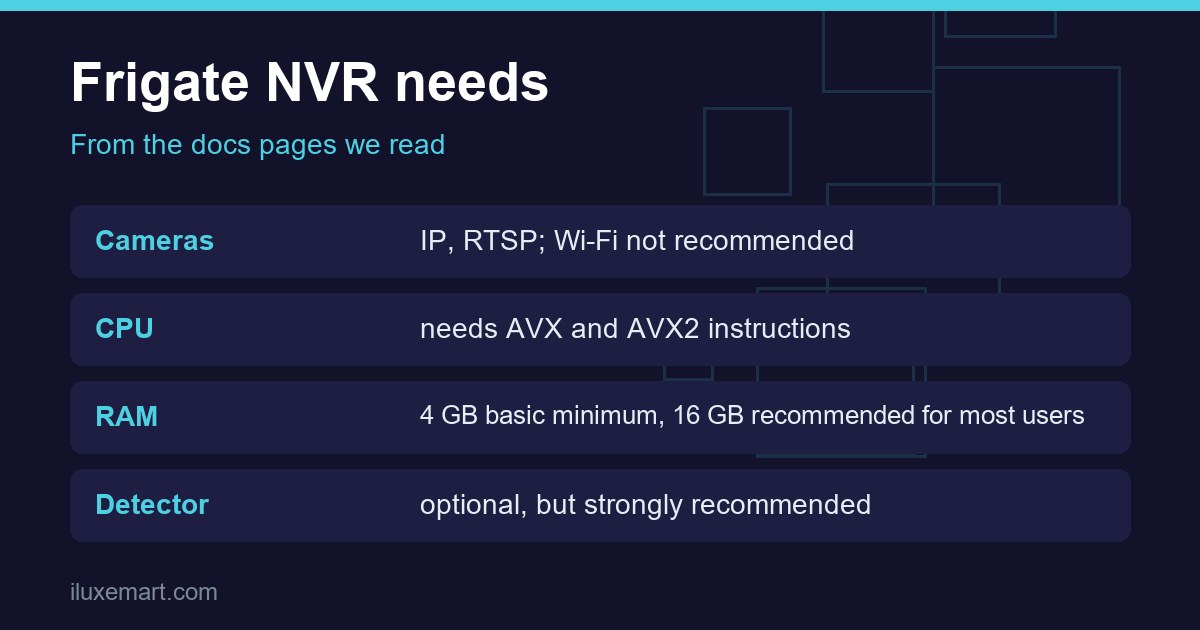
The hardware page says cameras that output H.264 video and AAC audio offer the most compatibility with all features of Frigate and Home Assistant. It also calls it helpful if a camera supports multiple substreams, so different resolutions can be used for detection, streaming and recording without re-encoding.
On Wi-Fi, the page is direct: Wi-Fi cameras are not recommended, because their streams are less reliable and cause connection loss or lost video data, especially when more than a few are used at once. In our view, that points to wired IP cameras that offer an RTSP stream. We could not confirm from the pages we read whether any particular Wi-Fi camera works acceptably.
The same page names camera brands and models. The camera links are labelled as affiliate links, and the server section’s Amazon links sit under the page’s own commission disclosure. We did not adopt any of those recommendations, and we name no cameras here.
2. The computer: CPU and operating system
The planning page says Frigate NVR requires a CPU with AVX and AVX2 instructions. It says most modern CPUs (post-2011) have them, but they are generally absent in low-power or budget-oriented processors, particularly older Intel Pentium, Celeron and Atom-based chips. It adds that Intel Celeron and Pentium models before the 2020 Tiger Lake generation typically lack AVX, and that older Xeon models may lack AVX2. The hardware page repeats the AVX and AVX2 requirement and says anything with an Intel CPU (with AVX + AVX2 instructions) and capable of running Debian should work fine. That sentence sits in the page’s author-recommendations section. It also notes that many mini PCs ship with Windows and you would need to install Linux.
The installation page says Frigate NVR runs best with Docker installed on bare metal Debian-based distributions. Running it in a virtual machine on Proxmox, ESXi or VirtualBox is not recommended, though some users have had success with Proxmox. Windows is not officially supported, though some users have had success under WSL or VirtualBox. In our view, a spare office PC is worth checking for AVX and AVX2 before you rely on it, but we could not confirm which specific machines qualify.
The planning page also says a CPU with an integrated GPU (Intel Quick Sync, AMD VCN) or a dedicated GPU can offload video decoding, which it describes as highly recommended for multiple cameras.
3. RAM
The planning page gives three tiers.
- 4 GB, the basic minimum. Described as generally sufficient for a very basic setup with a few cameras and a dedicated object-detection accelerator, without enrichments. The page warns performance might be tight.
- 8 GB, the minimum for enrichments. Enrichments include features such as facial recognition and license plate recognition.
- 16 GB, recommended. For most users, especially with 8 or more cameras, or heavy use of enrichments.
The 4 GB figure is a basic minimum for a very basic setup, not a general target.
4. Storage
Storage is an important consideration, per the planning page. For a Frigate NVR box, the page says HDDs have the best cost per gigabyte and much larger capacities, SSDs are fast and quiet, and local storage is generally recommended over network storage. For the arithmetic, including the one-hour free-space cleanup rule, see our camera storage calculator guide. For the wider no-subscription picture, see our guide to local storage without a subscription.
5. An object-detection accelerator (the detector)
The introduction says a recommended detector is optional but strongly recommended, and that “CPU detection should only be used for testing purposes.” The hardware page explains why: a detector is a device optimized for running inferences efficiently, using one means less latency between detections and more detections per second, and Frigate NVR is designed around the expectation that one is used.
The planning page ties detector demand to how many cameras see activity at the same time. For 1 to 6 cameras with occasional motion, it says a single entry-level AI accelerator will suffice. For 12 or more cameras or highly active zones, it says you will likely need multiple entry-level accelerators or a more powerful single unit such as a discrete GPU.
The hardware page lists detector families by hardware type, including Hailo, Google Coral, Intel OpenVINO, Nvidia GPUs, AMD ROCm, Apple Silicon and Rockchip, with several marked community supported. On the Coral, the page carries a warning: “The Coral is no longer recommended for new Frigate installations” except for deployments with particularly low power needs or hardware that cannot use other accelerators. It says Frigate will keep supporting the Coral for as long as practicably possible. In our view, that makes the Coral a poor starting point for a newcomer buying fresh. The page also publishes inference-time tables, which we have deliberately not repeated, because we could not check them and did not run any hardware.
Is Frigate NVR for you?
This section is our view, built on the installation page.
The installation page says Frigate NVR is a Docker container that runs on any Docker host. It calls Docker Compose the recommended install method, and it shows configuration through volume mappings, ports and device pass-through. It also lists Linux commands, and Home Assistant users can instead install it as an App from a repository. In our view, that means Frigate NVR suits you if you are comfortable with Docker, text-based configuration files and a Linux machine, or willing to learn them. It suits you less if you want to plug in a camera and open an app.
The page also lists a few cautions worth knowing before you start. Port 5000 is unauthenticated and the page says access to it should be limited. The RTSP restream is unauthenticated by default. Some Home Assistant OS setups cannot use certain GPUs or NPUs. We could not confirm how long a first setup takes, because we did not install it.
In our view, if your cameras are cloud-first and you want zero maintenance, a boxed NVR or a camera that stores locally may fit better. Our local storage without a subscription guide covers those routes.
What we could not confirm
- We did not install or run Frigate NVR, so we have no experience of setup time, stability or false alerts.
- We give no performance figures. The hardware page has inference-time tables, but they are the docs’ own, and we did not check them.
- The hardware page contains the author’s personal recommendations for cameras and mini PCs; the camera links are labelled as affiliate links, and the Amazon links sit under the page’s own commission disclosure. We did not adopt them, and we could not confirm that any named product suits your home.
- We could not confirm which exact CPUs, cameras or accelerators work well together, beyond what the pages say.
- We read only the pages listed below. Other Frigate pages may add detail or change these points.
- Statements marked “in our view” are our reasoning, not the documentation’s.
Your next step
Write down your camera count and whether each camera is wired, then check whether the computer you have in mind supports AVX and AVX2. After that, work out your disk size with our camera storage calculator guide. For more local-control guides, see our no-subscription smart home guides.
How we checked
We read each page below on 19 November 2026. This is a documentation read, not a test. We did not buy, install or run any camera, computer, accelerator or software. Claims marked “in our view” are our own reasoning.
Sources read 19 November 2026: Frigate, Introduction, Frigate, Home Assistant integration, Frigate, Planning a new installation, Frigate, Recommended hardware, Frigate, Installation.
More in this series: No-subscription and private smart home guides.