A camera storage calculator is multiplication you can do on paper: the bitrate of each camera, times the seconds in a day, times the number of cameras, times the days you want to keep. We worked each sum out step by step below. The Frigate pages we read list the factors that decide the answer, but give no formula and no bitrate figures, so the arithmetic is ours. We tested nothing, and we give no prices and no product picks.
If you are still deciding between a box at home and a cloud service, start with our local NVR vs cloud camera comparison. If you have already chosen local, read on.
Table of Contents
Camera storage calculator: the short answer
Here is the whole camera storage calculator method. It is our own arithmetic, not a formula from any source.
- Take the camera’s video bitrate in megabits per second (Mbps).
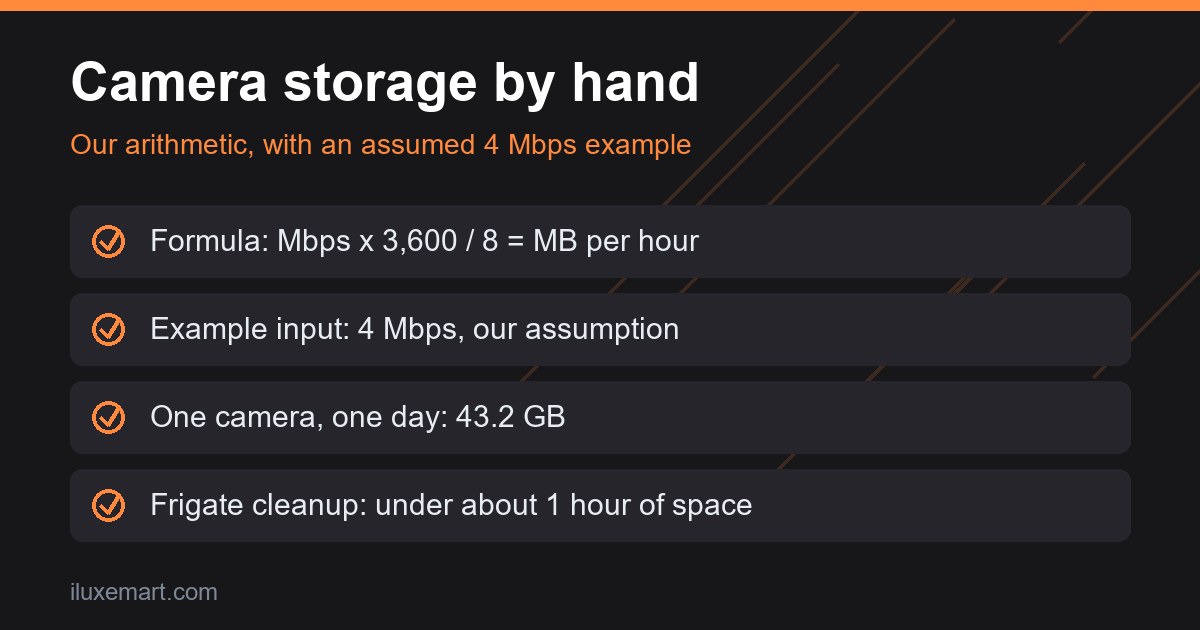
- Multiply by 3,600 (seconds in an hour) and divide by 8 (bits in a byte). The result is megabytes per hour.
- Multiply by 24 for megabytes per day.
- Divide by 1,000 for gigabytes per day.
- Multiply by the number of cameras and the number of days.
We use decimal units, where 1 GB is 1,000 MB. The space left after filesystem overhead and reserved blocks will be lower (the record page cites ext4’s roughly 5 percent reserve for root), so treat every result as an estimate.
What the Frigate planning page says decides the size
The Frigate planning page says you can use an IP camera storage calculator for a more precise estimate and names the IPConfigure calculator as an example. We did not open that calculator, so we cannot say how it works, and we do not link it. What the page does list are four factors:
- Number of cameras. More cameras need more space.
- Resolution and framerate. The page says higher resolution (it gives 4K as an example) and higher framerate (30 fps) streams use significantly more storage.
- Recording method. In the page’s words, “Continuous recording uses the most space.” It adds that motion-only or object-triggered recording can save space but may miss some footage.
- Retention period. How many days, weeks or months of footage you want to keep.
In our view, those four factors are the things any storage estimate has to account for. Our sums fold resolution and framerate into a single bitrate figure. The camera setup page adds one more: it says cameras set to H.264 video and AAC audio offer the most compatibility with Frigate and Home Assistant, and “H.265 has better compression, but less compatibility.” In our view, that means the same scene can need a lower bitrate in H.265, but we could not confirm by how much, because the pages give no figures.
Where to find your real bitrate
The Frigate pages we read give no bitrate figures, so we have none to offer as facts. Your real number lives in the camera’s own stream settings page, The camera setup page’s example camera has separate Main Stream and Sub Stream settings. Menu names vary, so check your manual. In the Frigate example, the main stream is the one used for recording, so start there. The Frigate camera setup page says the recording stream is typically the highest resolution your camera supports, and the page’s author recommends setting it to 15 fps in the camera’s firmware, and their example camera uses 15 fps. That is one person’s setup. It is not a rule, and the page shows resolution and frame rate for its example camera but no bitrate.
If your camera shows the bitrate setting as a number, use it. If it offers only a quality level, we could not confirm how that maps to Mbps, so check the camera’s manual. A camera’s number may be a ceiling rather than a constant, and we could not confirm that for any camera. In our view, a hand sum from the listed number is the cautious choice for continuous recording. Whichever number you find, it is the only input the sums need from the camera itself.
Camera storage calculator by hand: the sums step by step
Everything below uses an assumed example input. Suppose your camera’s settings page shows a 4 Mbps main stream. We chose 4 Mbps as an example. It is not a camera spec and not a measurement, and your own number may be lower or higher.
One camera, one day
- 4 Mbps x 3,600 seconds = 14,400 megabits per hour.
- 14,400 / 8 = 1,800 MB per hour.
- 1,800 x 24 = 43,200 MB per day.
- 43,200 / 1,000 = 43.2 GB per day.
So on our assumed input, one camera recording continuously uses about 43.2 GB a day. That is the storage per day for one continuously recording camera at the assumed input, and every later figure comes from it.
One camera, several retention periods
- 7 days: 43.2 x 7 = 302.4 GB.
- 14 days: 43.2 x 14 = 604.8 GB.
- 30 days: 43.2 x 30 = 1,296 GB, or 1.296 TB.
Four cameras, same assumed input
- Per day: 43.2 x 4 = 172.8 GB.
- 7 days: 172.8 x 7 = 1,209.6 GB.
- 14 days: 172.8 x 14 = 2,419.2 GB.
- 30 days: 172.8 x 30 = 5,184 GB, or 5.184 TB.
Notice how fast the camera storage calculator result grows. Doubling the retention doubles the space, and doubling the cameras does the same. The same CCTV bitrate storage rule applies in reverse: halve the bitrate and you halve the space. A different mix of cameras works the same way. Work out each camera’s daily figure from its own bitrate, then add them up.
NVR storage per day when you record only on motion
Now change the recording method in the camera storage calculator. The planning page says motion-only or object-triggered recording can save space but may miss some footage. How much it saves depends on how much happens in front of your cameras, and the pages give no typical figure. We could not confirm one.
For the sums, we will assume that recording happens 25 percent of the time. That is an assumption we picked to show the method. Your own activity may be quite different, and a busy street will record far more than a back garden.
- One camera, one day: 43.2 GB x 0.25 = 10.8 GB.
- Four cameras, one day: 172.8 x 0.25 = 43.2 GB.
- One camera, 30 days: 1,296 x 0.25 = 324 GB.
- Four cameras, 7 days: 1,209.6 x 0.25 = 302.4 GB.
- Four cameras, 30 days: 5,184 x 0.25 = 1,296 GB.
In our view, the practical way to use this is to start with the continuous figure as your ceiling, then look at how many hours a day your cameras actually trigger over a week. The sources do not describe a way to measure that, and we did not try one.
The Frigate record page also shows how retention can be layered. Its most conservative example keeps all video for 3 days, then only video with motion for 7 days, then only video containing motion that overlaps alerts or detections for 30 days. Its reduced-storage example keeps only motion footage for 3 days and alert and detection footage for 30. In both, days are set separately for continuous, motion, alert and detection recordings, and decimals such as 0.5 days are allowed. In our view, a layered plan means you add one sum per layer, each with its own fraction and days, rather than one sum for everything. The page also warns that the default motion mode can leave out parts of the pre/post-capture window with no motion.
What Frigate says about full disks and mismatched numbers
The camera storage calculator sums give you a target. These notes from the Frigate record page explain what happens around it.
- Oldest recordings go first when space runs short. Frigate deletes the oldest recordings when less than roughly one hour of recording space remains, estimated from the current bitrate. The page states: “This emergency cleanup removes the oldest recordings first regardless of retention settings.” It says frequent emergency cleanups usually mean your configured retention is more than the disk can hold, and it suggests reducing retention days.
- The threshold is time, not a percentage. The page says cleanup can run while a meaningful share of the disk is still free, for example with high bitrates or many cameras. In our view, this is a reason to leave headroom beyond the sum.
- Reported usage will not match the operating system. The page says the storage figure Frigate reports will not exactly match what df or du report, and that this is expected.
- Reserved space. It notes that ext4 reserves about 5 percent for root by default, so a disk can read full before recordings reach the total. In our view, a 1,296 GB result is therefore not safe on a drive that is sold as 1.3 TB.
- Some files are not counted. Snapshots, preview videos, exports and the database are not part of the recordings total, though they use real disk space.
- The cache is separate. Recordings are first written to /tmp/cache, a small in-memory area that can fill up even when the recordings disk has plenty of room.
Disk types for a camera storage calculator result
The planning page makes a few points about drives. It says HDDs offer the best cost per gigabyte and come in much larger capacities than most consumer SSDs. It describes SSDs as fast, quiet and low-power, and says the old worry about wear is largely no longer valid for modern drives. It also names, as examples named by the page, Western Digital Purple and Seagate SkyHawk as drives engineered for 24/7 operation and continuous write workloads. We are only reporting what the page says. We recommend none of them and did not test any.
On where the drive lives, the page says local storage is generally recommended. Network storage is supported, but it can add latency and network dependency, and the page asks for gigabit Ethernet at minimum and a NAS that can handle the continuous write load. If you are weighing a NAS, our NAS buying guide covers the box, and our guide to local storage without a subscription covers the wider setup.
Checklist before you buy a drive
This checklist is our reasoning, built on the sums and notes above. It is not a recommendation of any product.
- Find each camera’s real bitrate. In our view, write down the main stream number from each camera’s settings page before anything else.
- Choose the days you will actually use. In our view, pick the retention you need, not the longest one that fits. The Frigate record page suggests exporting a clip you want to keep rather than raising retention for the whole camera.
- Run the camera storage calculator sum for continuous recording. In our view, treat it as the ceiling, then decide whether motion-only recording is acceptable given that it may miss footage.
- Add headroom. Leave room for the roughly 5 percent ext4 reservation, for snapshots, previews and exports, and for the hour of free space Frigate wants.
- Check the match with your hardware. In our view, confirm the box has a free drive bay or slot, and whether the drive is rated for constant writing.
- Check codec support. If you plan to use H.265 to save space, check that your viewing devices can play it. The Frigate pages list only some browsers as able to.
For cameras that work with other smart home platforms, our Matter cameras guide covers what works today.
Honest limits of this camera storage calculator
- We tested nothing. No camera, NVR, drive or software was bought, installed or run.
- Our camera storage calculator sums rest on two examples we chose: the 4 Mbps input and the 25 percent motion fraction are examples we chose. They are not measurements, specs or averages.
- The arithmetic is ours. The Frigate pages give no formula and no bitrate figures.
- We did not open the IPConfigure calculator the planning page mentions, so we cannot compare it with our sums.
- We could not confirm how much H.265 saves, how a quality setting maps to Mbps, or how often a typical camera triggers.
- Statements marked “in our view” are our reasoning, and the sums are our own arithmetic.
Your next step
Open each camera’s stream settings page, write down the main stream bitrate, and run the five steps of the camera storage calculator for your own cameras. Then compare the continuous result with the motion-only case before you look at any drive. For more local-control guides, see our no-subscription smart home guides.
How we checked
We read each page below on 19 November 2026. This is a documentation read and a paper exercise in a camera storage calculator, not a test. We did not buy, install or run any camera, NVR, drive or software. We read the hardware and FAQ pages only for context, including the author’s recommendations, which we did not adopt. Claims marked “in our view” are our own reasoning.
Sources read 19 November 2026: Frigate, Recording, Frigate, Planning a new installation, Frigate, Camera setup, Frigate, Recommended hardware, Frigate, Frequently asked questions.
More in this series: No-subscription and private smart home guides.