Security camera local storage no subscription sounds simple, but the spec sheet may say “microSD” while another line says some features need a cloud plan. This checklist shows what to look for before you buy, using manufacturer and open-source documentation we opened on 11 November 2026.
Security camera local storage no subscription: the short checklist
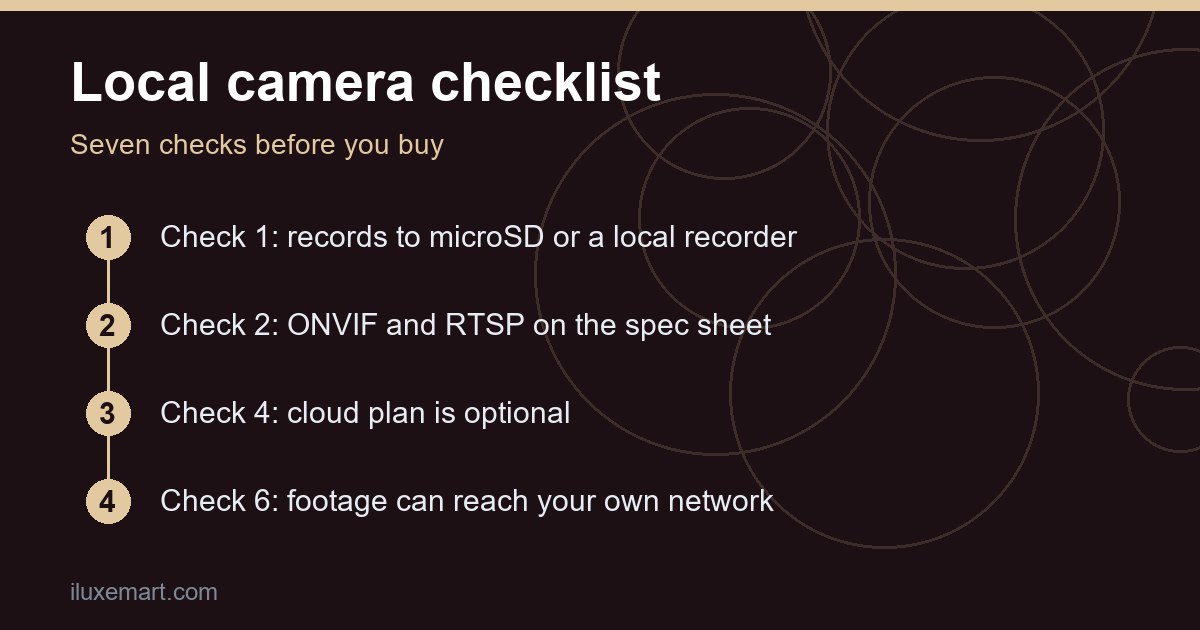
Before you buy, you want a yes to each of these:
- The camera records to a microSD card or to a recorder you own.
- The spec sheet lists ONVIF and RTSP.
- The detection features you want are not locked behind a plan.
- The cloud plan, if there is one, is optional.
- You know whether setup needs an account.
- The camera can send footage to your own network.
- The video format works with the software you plan to use.
The sections below take these in turn.
Check 1: Where does it record?
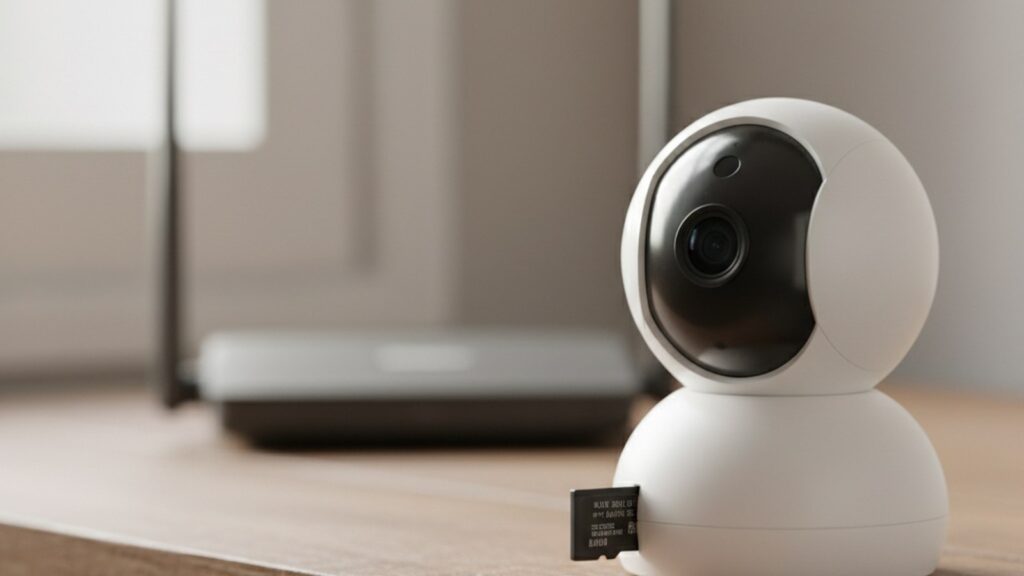
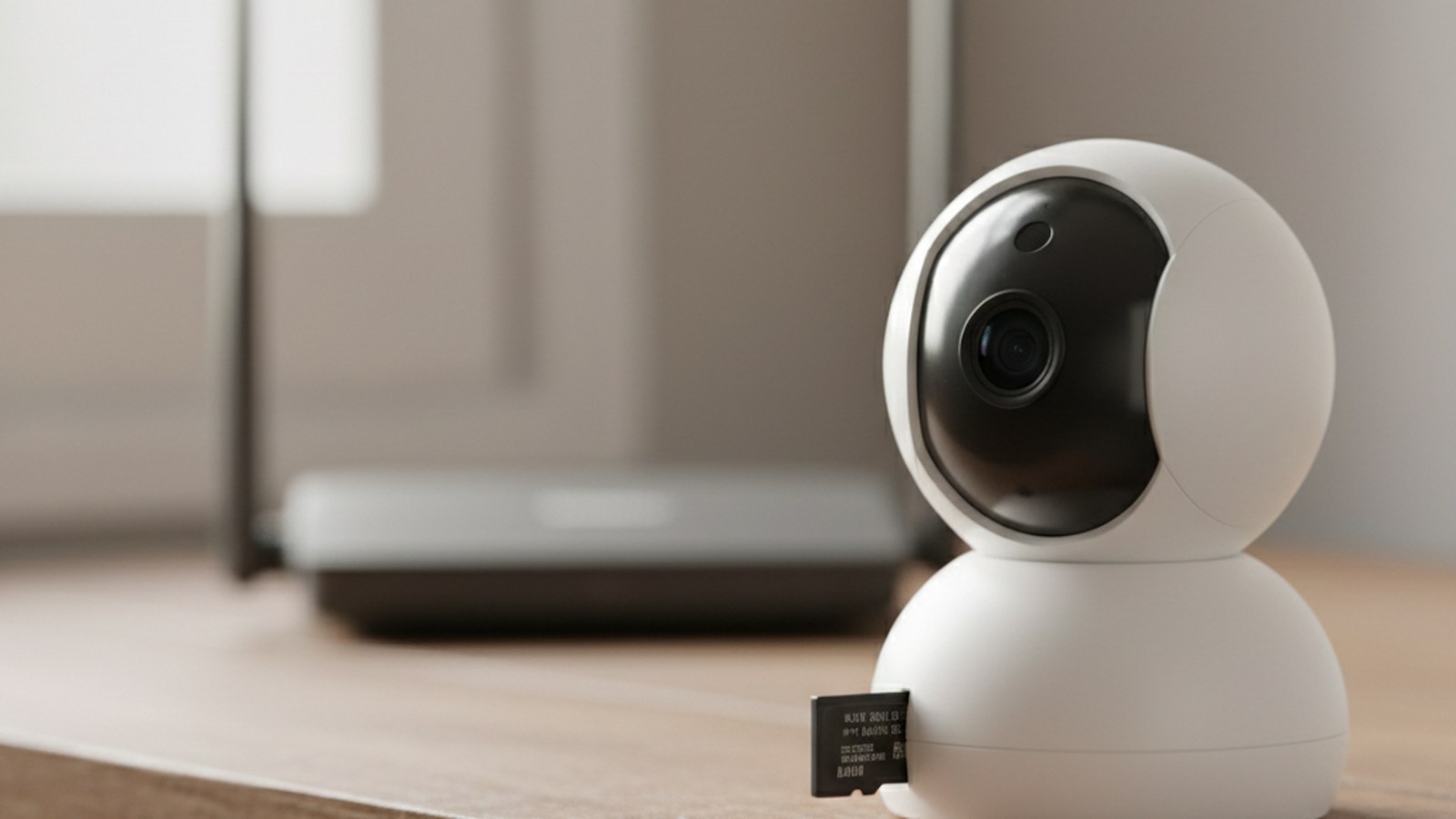
Start with the spec sheet’s storage row. The TP-Link Tapo C120 (V2) page is a useful example because it states this plainly: local storage is a microSD card slot on the camera, up to 512 GB, and cloud storage is “Tapo Care Cloud Storage Services (Subscription required)”.
That is the pattern to look for on a spec sheet: the card slot is the local option, and the cloud is a separate, paid add-on. We use the Tapo page only to show how a spec sheet reads, not as a recommendation.
Camera microSD no subscription: read the details
“Camera microSD no subscription” only holds if recording to the card is a normal feature. The Tapo page lists a microSD card slot under its interface and says the card is sold separately. Look for the same two details on any model: the maximum card size and whether a card is included.
Check 2: Does it list ONVIF and RTSP?
Recording to a card is one thing; using the video in other software is another. Home Assistant’s ONVIF integration works with ONVIF Profile S devices, and its Generic Camera integration needs a still image URL or a stream source URL. The ONVIF organisation’s site is where the standard comes from.
The Tapo spec table lists “ONVIF Yes (Profile S)”. It also has a row reading “Ethernet Port / RTSP YES”, but no Ethernet port appears under its interface list, so what that row means is unclear. Check the camera’s own support page before relying on RTSP.
Why RTSP matters
RTSP is a streaming protocol. Home Assistant’s docs show an rtsp:// address as a stream source, and its Generic Camera page says the Stream Source field takes the URL your camera serves the live stream on.
Check 3: Are detection features free?
Some cameras tie smart alerts to a plan, so check. The Tapo page says person, pet, vehicle and baby-cry detection come “without a subscription”, and that on-device AI detects people, vehicles and pets “for free”. These are the manufacturer’s own claims, and we did not test them. Ask the same question of any camera: which alerts work with no plan at all?
Check 4: What does the cloud plan add?
A wifi camera without cloud can still record to a card, so find out what the plan adds before assuming you need it. On the Tapo page, Tapo Care is described as adding notifications with detection snapshots, encrypted protection, data backups and a 30-day video clip history. The page offers a 30-day free trial and shows no price, so we are not naming one.
Questions for any plan
- Which features are free, and which need the plan?
- Does recording to the card keep working if you never subscribe?
- Is there a trial that turns into a charge? We could not confirm how the Tapo trial ends, so read the terms.
Check 5: Does setup need an account?
This is the check most spec sheets skip. The page says Bluetooth is “for setup only”, but it does not say which app or account setup needs, and we could not confirm whether the Tapo app works without an account.
Treat it as an open question for any camera. Look for a statement on the manufacturer’s support pages about account-free or local-only use, and do not assume.
Check 6: Can footage stay on your own network?
There are three routes. The first needs nothing beyond the camera and card; the other two need software running on a computer or similar device you provide.
Route 1: the card alone
Footage stays on the camera’s microSD card. Our own reasoning, not a manufacturer statement: if the camera is stolen or the card fails, the footage goes with it.
Route 2: a local recorder program
Frigate describes itself as “a complete and local NVR designed for Home Assistant with AI object detection”. Its introduction says it detects objects locally for IP cameras, records with retention based on detected objects, and can re-stream over RTSP to reduce the number of connections to your camera. It also says a recommended detector is optional but strongly recommended, and that CPU detection should only be used for testing.
For a fuller comparison, see our 3-year cost comparison of a local NVR and cloud cameras.
Route 3: Home Assistant
Home Assistant can add an ONVIF camera or any IP camera by its stream address. Its ONVIF page lists a “Storage failure” problem sensor and a “Recording job state” sensor that shows whether the device is actively recording, if the camera reports them. The docs also recommend creating a separate user on the camera just for Home Assistant.
Check 7: Will the video format work?
One detail from the Home Assistant ONVIF page is easy to miss. The integration adds entities for profiles with the video encoding set to H.264, and the troubleshooting section says “No usable cameras were found” can appear when a camera does not output any H.264 stream (for example, one that outputs only H.265). One option the page gives is to set a secondary stream to H.264 while leaving the primary stream at H.265.
The Tapo spec table lists video compression as H.264. Check this row on any camera you consider, especially a higher-resolution one. We did not test any camera with Home Assistant, so treat this as a pointer to the documentation, not a compatibility promise.
Practical limits of local storage with no subscription
A few last points before you rely on a card-only setup. The Tapo page lists 2.4 GHz Wi-Fi only and says it does not work with 5 GHz. It also lists privacy zones that “completely block sensitive areas from recording”.
On storage time, the page claims “37 Days of 2K footage” on a card up to 512 GB, without stating the settings behind that figure, so we would not plan around it. Our own reasoning: real retention depends on resolution, how often the camera records and card size.
What to do next
Choosing a security camera local storage no subscription model comes down to reading the spec sheet carefully. Pick two or three cameras, open each spec sheet and go through the seven checks. If a detail is missing, such as account-free setup, ask the manufacturer’s support before you buy.
For the front door, read our no-subscription doorbell camera buying guide. More guides on avoiding monthly fees are in our no-subscription smart home guides hub.
Sources checked 11 November 2026: TP-Link Tapo C120 (V2), Home Assistant, ONVIF, Home Assistant, Generic Camera, Frigate documentation, ONVIF organisation.
More in this series: No-subscription and private smart home guides.