
A 3-2-1 backup home assistant plan means three copies of what matters, on two kinds of storage, with one copy kept away from where the others are (CISA says away from the business location). Neither source page applies the rule to Home Assistant for you, so we line the two up ourselves. We read two pages on 22 November 2026. We tested nothing and changed no setting, and we give no prices and no product picks.

The pages are CISA’s guidance on backing up business data and Home Assistant’s own Backups page. Menu paths are copied from the pages and may change. Where the reasoning is ours, we say so.
Table of Contents
The 3-2-1 backup home assistant rule as CISA states it
CISA, the US Cybersecurity and Infrastructure Security Agency, calls the 3-2-1 rule “a trusted guideline”. Its page gives three parts.
- 3 copies of important files.
- 2 different types of storage media, with a hard drive and the cloud as examples.
- 1 copy stored off-site, away from your business location.
The page adds that backups should run automatically and regularly, and that mixing on-site and remote copies guards against threats, hardware failures and physical damage.
One caveat matters here. CISA’s page is written for small and medium businesses, not households. Applying it to a smart home is our reading, not CISA’s statement.
What the Home Assistant page says about copies
The Home Assistant page never mentions the 3-2-1 rule. Under defining backup locations, it warns that if backups sit only on the device itself, you will not reach them easily after a crash. It recommends a copy on another system outside Home Assistant, and ideally one off-site.
That is two of CISA’s three ideas: a separate place and a distant one. So any 3-2-1 backup home assistant mapping is ours, built from two pages that agree in spirit but do not cite each other.
Map your copies for a 3-2-1 backup home assistant plan
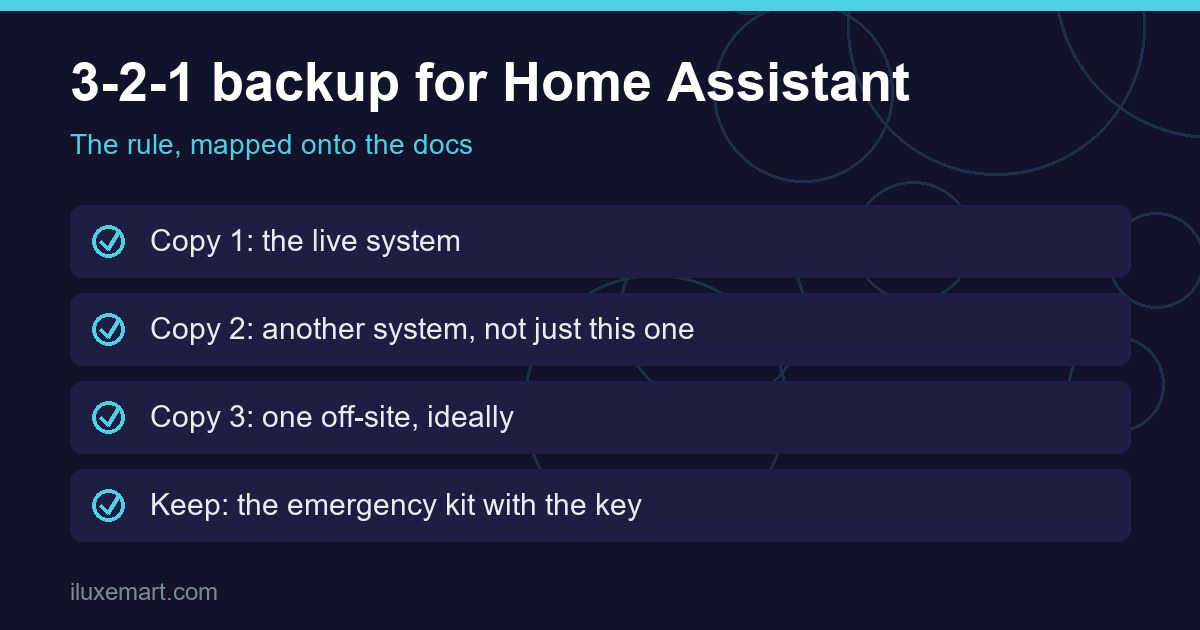
This table is our mapping, not either page’s. The right column is what the Home Assistant page says.
| Copy | Where it could sit | What the Home Assistant page says |
|---|---|---|
| 1 | The live system | Stored locally by default. If they stay only on the device, the page says they are hard to reach after a crash |
| 2 | Another system or another media type | Recommended outside Home Assistant. NAS and cloud providers are covered in integration docs |
| 3 | Off-site | Recommended ideally. Home Assistant Cloud is one place the page describes |
Whether the live system itself counts as one of the three copies is a judgement call, and neither page settles it. Neither says which two media types to pick, beyond CISA’s examples.
What a backup contains
The page says backups are encrypted by default and stored as a compressed .tar archive, locally by default. On Home Assistant OS you choose the parts.
- Home Assistant settings: the minimum needed to restore (config folder, SSL certificates); automatic backups never leave them out.
- History: sensor history, including the energy dashboard, from the default database.
- Media: your media folder, such as camera footage.
- Share folder: a shared area some apps use for custom or legacy settings.
- Local apps folder: files from apps you built yourself.
- Apps: all, none or a selection, with their data.
On Home Assistant Container, the page says a backup holds the settings and, if you choose, the history. Apps, the media and share folders and network storage exist only on OS. Our OS versus Container guide explains the difference. It matters for a 3-2-1 backup home assistant plan, because the same three copies protect different things on each type.
What a backup does not contain
The page lists files never included, because Home Assistant recreates them or because they would swell the file.
- Logs (for example home-assistant.log).
- Caches and temporary files, such as cached text-to-speech audio.
- Older backups in the backups and tmp_backups folders. A backup you copied elsewhere in the configuration folder is included.
- On OS, files Home Assistant marked as damaged.
External databases are also left out. If history lives in MariaDB or PostgreSQL on another system, the page says it is never part of a backup and should be backed up separately with the database’s own tools. A database run as an OS app is backed up with the app. For anyone running one, that is a second job we did not cover.
Preparing: keep the copies small
The page suggests checking size first, especially before migrating hardware.
- Go to Settings > System > Repairs, open the three dots menu, select System information and read the Estimated database size under Recorder.
- The default keeps 10 days of data. If you changed it, the page points to the purge_keep_days option and the recorder’s include and exclude options.
- On OS, check Disk used under Home Assistant Supervisor in the same view.
- Uninstall apps you no longer use.
To store backups on network storage as well, you add the storage and select the Backup option. Smaller files help every copy, since each location has to hold them.
Automatic backups in a 3-2-1 backup home assistant plan
The page’s route is Settings > System > Backups. On the Set up backups card, select Set up backups. The Encryption key step opens first.
In the kit download step, save the file in a safe place. The page says you need the key in the kit to restore. In our view, that makes the kit the easiest part to forget: if it sits only on the failed system, the other copies may be unreadable.
You then choose Recommended or Custom. As the page describes it, Recommended backs up everything daily except media, the share folder and the local apps folder, keeps the last 3 backups, and stores them on this system and on Home Assistant Cloud if you are logged in.
Custom sets the schedule, time, retention and data. The page recommends leaving out media and the share folder to keep size down, notes that a large backup restores more slowly, and says to pick a time when every location is available.
Retention deletes older automatic backups but not manual ones, and Home Assistant Cloud replaces its previous backup on every upload. For a local-media route, see our USB backup guide.
Backup locations for a 3-2-1 backup home assistant plan
On the locations step you turn on where each backup goes. For a NAS (the page names Synology) or a cloud provider (it names Google Drive and Microsoft OneDrive), the page says to check that integration’s documentation. If your network storage or local disk is missing, it has not been added with the Backup usage.
We did not open those integration pages, so we cannot say how any behaves. If a NAS is the second copy you have in mind, our home NAS backup buying guide covers that side.
Home Assistant Cloud as a possible off-site copy
The page says a Home Assistant Cloud subscriber can store a backup of at most 5 GB there. It keeps one file, the last one saved, always encrypted, and restoring needs the key from the emergency kit. The page says the space is available to Home Assistant Cloud subscribers without additional cost. We give no price and did not check the terms. The page does not call Cloud off-site; that mapping is ours.
Two limits follow, and they are our reading. One file means no older versions, and 5 GB may not fit a large backup. CISA’s testing advice includes rolling back at least seven days, which one replaced file cannot offer, so in a 3-2-1 backup home assistant plan the other locations would carry that job.
Secure and test your 3-2-1 backup home assistant copies
CISA’s third step asks for physical security, encryption and offline copies, knowing how to reach critical files without internet, and testing that data restores fully and partially.
Home Assistant’s page ties in at points. Backups are encrypted by default. On OS, a restore needs an internet connection, at least 2 GB free and a healthy system, and the page says an offline setup cannot start one. That may not match CISA’s offline advice, and we could not resolve it from the pages. The Home Assistant page does say a downloaded backup can be opened with an archive tool, which bears on file access. Our restore test guide covers trying a restore.
A short 3-2-1 backup home assistant checklist
This ordering is ours, drawn from the two pages.
- Note your install type, since OS and Container backups differ.
- Check the database size.
- Set up automatic backups and download the emergency kit.
- Keep the kit somewhere other than the Home Assistant system.
- Add a second location outside Home Assistant.
- Add an off-site location, ideally, and decide whether Cloud fits.
- Back up any external database separately.
- Test a restore on a schedule you will keep.
What we could not confirm
- We tested nothing, so we cannot say any 3-2-1 backup home assistant setup is safe or complete.
- Neither page mentions the other topic. The mapping is ours.
- We did not read the integration pages for NAS or cloud locations, or the emergency kit page.
- Neither page carries a date, so paths and limits may change. The Home Assistant page showed version 2026.11.2 in its header.
Your next step
Open Settings > System > Backups and check where your backups sit today. If every copy is on the system itself, that is the first gap to close in your 3-2-1 backup home assistant plan.
How we checked
We read two pages on 22 November 2026. This was reading only, with no hands-on trial. We ran no 3-2-1 backup home assistant setup of our own and made no backups.
Sources read 22 November 2026: CISA, Back Up Business Data, Home Assistant, Backups.
More in this series: No-subscription and private smart home guides.