
An unwanted tracking alert means your phone thinks a Bluetooth tracker belonging to someone else has been travelling with you. It can happen with a borrowed item or a tracker belonging to someone you are travelling with, but it still deserves a calm look. This guide puts the steps from Apple’s and Google’s own help pages in one order. We read them on 22 November 2026, tested nothing and own no tracker.
Everything is attributed to the page that states it, and our own reasoning is marked with the words in our view. Apple’s alert page is dated 24 September 2026 and its Personal Safety guide February 2026. The Android page shows no date, so details may change.
Table of Contents
Unwanted tracking alert: your first 60 seconds
This order is ours, not a rule from either company.
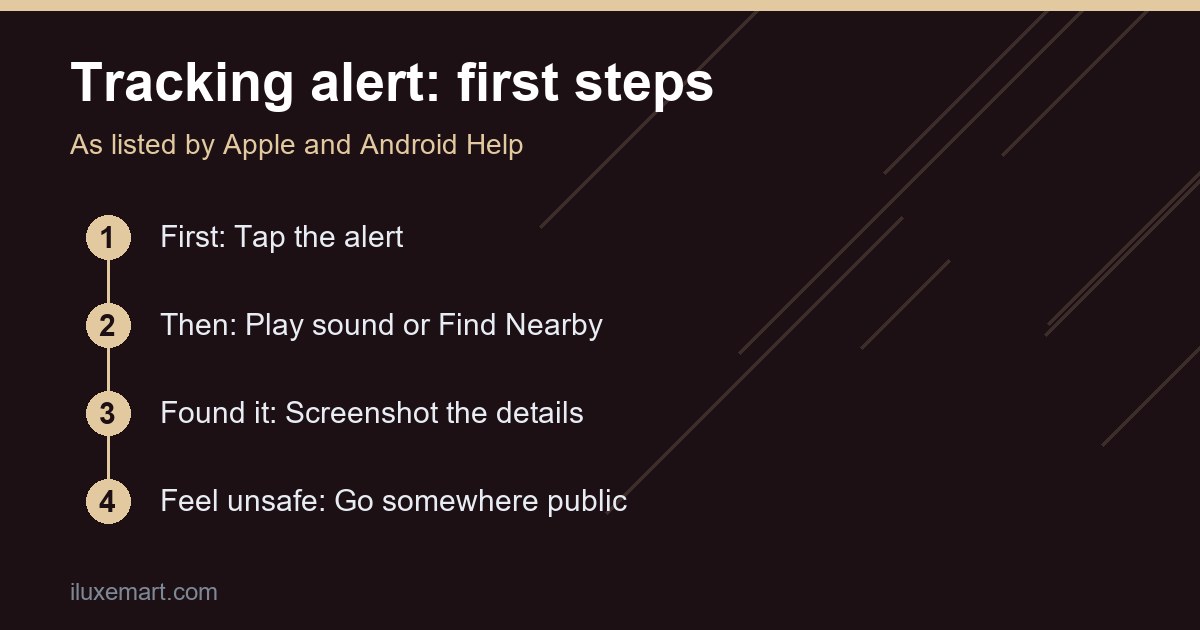
- Check how you feel. Both companies say that if your safety is at risk you should go to a safe public place and contact local law enforcement.
- Tap the notification to open a map of where the item was seen with you.
- Play a sound. On iPhone, tap Continue, then Play Sound. On Android, tap Play sound.
- Listen and search your belongings if no sound is available.
- Screenshot what you see before changing anything.
If an unwanted tracking alert is on your screen right now, do step one first. In our view, being somewhere safe matters more than finding the item.
Unwanted tracking alert on iPhone: what lets it reach you
Apple’s alert page says a Bluetooth item separated from its owner and seen moving with you over time triggers a notification or a sound from the item. For an iPhone or iPad to receive tracking notifications, the page lists these settings.
- Update to iOS or iPadOS 17.5 or later. A footnote says tracking notifications need 14.5, while compatible third-party trackers need 17.5.
- Settings, Privacy & Security, Location Services: turn it on.
- Settings, Bluetooth: turn it on.
- Settings, Notifications, Tracking Notifications: turn on Allow Notifications.
- Turn off Airplane Mode, because the page says you will not receive tracking notifications in it.
The page also lists Significant Locations among its steps. Apple’s guide lists a different System Services setting here, covered near the end.
Unwanted tracking alert names on iPhone
Apple’s alert page lists these titles.
- AirTag Found Moving With You. A separated AirTag has been seen moving with you, or made a sound while your iPhone was awake.
- AirPods Detected, AirPods Pro Detected or AirPods Max Detected. Separated AirPods have been seen moving with you.
- “Product Name” Found Moving With You. The same idea for a Find My network accessory or compatible Bluetooth tracker.
- Unknown Accessory Detected. Find My had trouble connecting. The page says this one is not shown for an AirTag, and the item could be borrowed AirPods.
Apple says the item might be attached to something you are borrowing. For a Family Sharing item, you can turn alerts off for a day or indefinitely. The map shows red dots where the item was detected near you, joined by dashed lines. Apple adds that the dots do not show when the owner is viewing its location.
Unwanted tracking alert: put your safety first
Apple says to go to a safe public location and contact law enforcement; Android adds a trusted contact. Apple’s Personal Safety guide adds that you should consider the effect on your safety and privacy before making changes.
Apple says using these products to track people without consent is a crime in many countries and regions. We are not lawyers, and this is not legal advice.
Finding the item behind an unwanted tracking alert
Apple’s alert page gives three routes on an iPhone.
- Play Sound. Tap the alert, tap Continue, then Play Sound. If it is missing, the page says the item may have left, may be near its owner, or may have changed identifier overnight.
- Find Nearby. On a supported iPhone with Ultra Wideband, for an AirTag or AirPods Pro 3 charging case, tap Continue, then Find (Find Nearby). Precision Finding shows distance and direction, and a flashlight button appears if more light is needed.
- Search your belongings. Check your person, a jacket pocket, a bag’s outer compartment and your vehicle.
The page also says a separated AirTag, or the charging case of certain AirPods models, makes a sound when moved. In our view, an unfamiliar chirp from a bag deserves the same steps.
Unwanted tracking alert on Android: what Android Help says
Android’s page says unknown tracker alerts need Android 6 or later, and currently work with Find Hub network compatible tags and headphones, and with Apple AirTags. Apple’s page also says Android 6.0 or later can notify you about an AirTag. The Android page lists these steps.
- Tap the tracker notification to open a map.
- Tap Play sound and follow the noise. The page says this does not notify the owner.
- If you cannot hear it, move around and try again. The tracker may be out of range or its device ID may have changed.
- Tap Next steps, then Find nearby, to connect over Bluetooth. This works only with Find Hub compatible trackers.
The page says automated alerts need Location turned on. Manual scanning does not need it on Android 11 and up, but on Android 10 and lower it uses Location and Bluetooth.
Our Android theft protection settings guide covers a different set of phone safety options.
Unwanted tracking alert: get information and keep a record
Apple says to touch the top of your iPhone, or another phone with NFC, to the white face of the AirTag and wait for a prompt. The website it opens shows the serial number and the last four digits of the registrant’s phone number, and Apple suggests a screenshot. If the owner marked it lost, you may see contact details. For other items, the page points to Identify Found Item at the bottom of the Items tab.
Android’s page says to bring an AirTag near the back of your phone and wait. Some trackers share a serial number or owner details, and others have the serial number printed on them.
Apple’s guide says to screenshot the item and owner information for your records before you disable it.
Unwanted tracking alert: turning the tracker off
Apple’s alert page says to tap Instructions to Disable and follow the steps. The owner then stops getting location updates, and you stop receiving alerts for that item. For third-party trackers, Apple says the instructions come from the finder network and are not certified by Apple.
Android warns that some trackers, once switched off, may reset and lose their link to the owner, which leaves law enforcement unable to get owner details for those trackers. It also says the owner may still see the last location. The page says you can keep it on if you are concerned that turning it off could be unsafe. Apple says you might need to provide the item and its serial number; Android says law enforcement may ask for the tracker or its identifier.
In our view, that supports the order here: stay safe, find it, record it, then decide.
Why switching off Bluetooth does not end an unwanted tracking alert
Apple lists disabling Find My, turning off Bluetooth and turning off Location Services on your iPhone. Apple says those settings do not cut off the owner’s view of the location; only disabling the item itself does. Android’s page says the same of Airplane Mode, Bluetooth and location services. In our view, the settings that deliver the alert should stay on.
Find a past unwanted tracking alert, or scan manually
On iPhone, the alert page says to open Find My, tap Items, then tap Unknown Items Detected with You at the bottom. On Android, the Android page says to go to Settings, Safety & Emergency, Unknown tracker alerts, then the tracker alerts button. The Android page also says alerts are deleted after 48 hours.
For a manual Android scan, the page says to go to Settings, Safety & Emergency, Unknown tracker alerts, then Scan now. It takes about 10 seconds and shows trackers near you, which may not have been travelling with you. Apple’s page also names Tracker Detect, an Android app that scans for items compatible with Apple’s Find My network.
Gaps are explained too. Trackers change identifiers regularly, and Android’s page says one away from its owner may change less often, like once a day, so it can appear as new. Android’s page also says you get one alert per tracker each day and must move with it over time first.
Where to find support
Apple’s alert page lists these resources if your safety is at risk. In the United States, the Safety Net Project at the National Network to End Domestic Violence and the National Center for Victims of Crime. In the United Kingdom, Refuge UK. In Australia, WESNET Safety Net Australia. Android’s page lists the same three regions. We did not read those organisations’ own sites.
What we could not confirm
- We tested nothing, own no tracker and never triggered an alert.
- The pages describe conditions, not guarantees. We cannot say an unwanted tracking alert always appears, or how soon.
- The alert page lists Significant Locations among its steps. The guide says turn on Find My iPhone under System Services. We did not test which you need.
- The alert page says Unknown Items Detected with You. The guide says Items Detected With You.
- Apple names the AirTag’s white side; Android names the back of the phone. These describe different objects. We tested neither.
- We read no manufacturer disable pages or legal guidance, and make no product or price claims. Statements marked in our view are our reasoning, not Apple’s or Google’s.
Your next step
Check today that the iPhone settings above are on, or that Unknown tracker alerts is on in Android, so the phone is set up to warn you, though the pages give no guarantee it will. For how the two tracker networks differ, see our Pixel Tag and AirTag comparison. If an unwanted tracking alert is open on your phone now, return to the first 60 seconds and put your safety first. In our view, a calm routine beats a rushed one.
How we checked
We read three pages on 22 November 2026. This is a documentation read, not a test, and we never triggered an unwanted tracking alert ourselves.
Sources read 22 November 2026: Apple Support, What to do if you get an alert, Apple Personal Safety User Guide, Detect unwanted trackers, Android Help, Find unknown trackers.
More in this series: No-subscription and private smart home guides.