If you want to see which servers smart devices contact, start with who they talk to: a DNS filter such as Pi-hole or AdGuard Home is one way to see which servers your smart devices look up, and the same tool can then block lookups you do not want. It also comes with real risks: block the wrong name and a camera, plug or TV can stop working. So this guide starts with safety, then covers seeing, blocking and undoing.
We opened every source below on 12 November 2026. Where a page was silent, we say “we could not confirm”.
Table of Contents
Before you block anything: 5 safe rules
Treat this as a checklist, not a formality.
- Look first, block later. To see which servers your smart devices contact, run the filter for about a week, blocking only a name you already recognise if at all, so you know what is normal.
- Change one thing at a time. If a device breaks, you will know why.
- Know your way back. Write down your router’s current DNS settings before you touch them.
- Keep a second device handy. If the filter machine goes down, your whole network may lose name lookups (our inference; the undo section covers the way back).
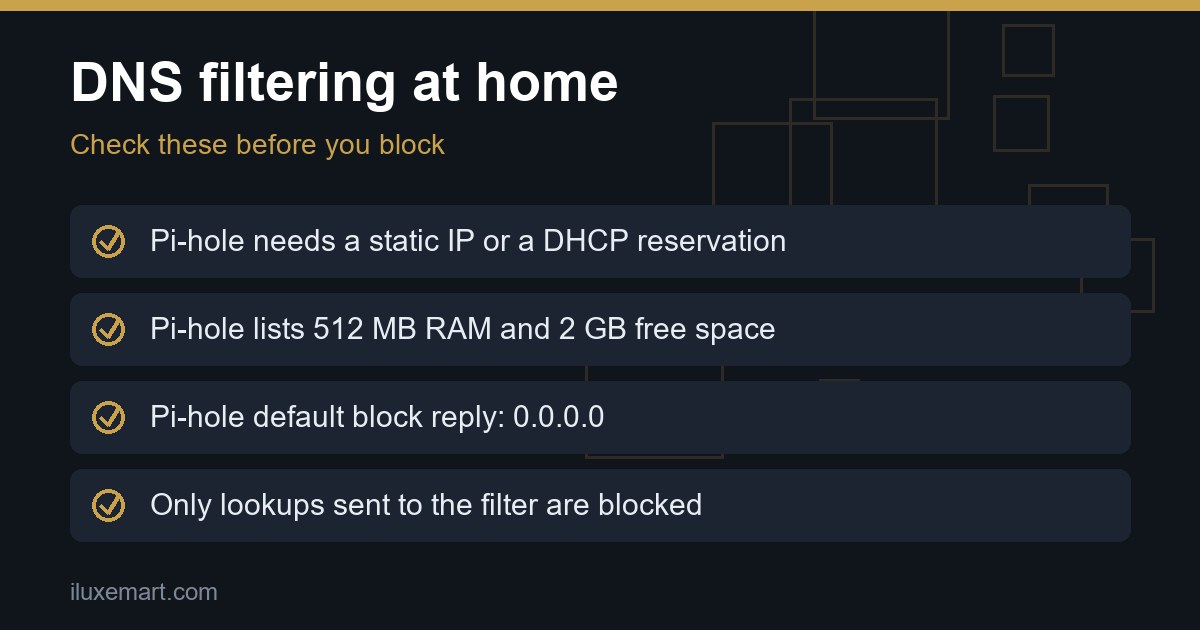
- Accept the limits. DNS filtering only affects lookups that actually go through the filter.
How DNS filtering works
To see which servers your devices contact, you first need to know how the filter sits in the path. Both tools act as a DNS sinkhole. The Pi-hole documentation describes Pi-hole as a DNS sinkhole that protects your devices from unwanted content without installing any client-side software. It says content is blocked in non-browser locations, such as ad-laden mobile apps and smart TVs.
The AdGuard Home README says it operates as a DNS server that re-routes tracking domains to a “black hole”, preventing your devices from connecting to those servers. It also says a DNS-based blocker can help with ads, tracking and analytics requests on devices where you cannot install a traditional ad blocker, such as smart TVs, smart speakers and other IoT devices.
See which servers smart devices contact with Pi-hole or AdGuard Home
Pi-hole’s page lists an “Insightful” web dashboard “to view and control your Pi-hole”. AdGuard Home’s README says that running your own server lets you “monitor your network activity”. Those are the only descriptions we read.
We could not confirm from these pages exactly how much detail either tool shows per device, how long it keeps history, or whether it names the company behind a domain. Check the dashboard in your own install.
Here is a sensible way to use it:
- Connect the devices you care about to the filter and use them normally for about a week.
- Note the domains that appear repeatedly, especially for devices that should be idle.
- Search for any name you do not recognise before deciding.
A lookup is a name, not the content. We could not confirm from these sources that DNS logs show what data a device actually sends, so this method tells you which servers a device asks for, not what it says to them.
What you need to run it
Pi-hole’s prerequisites page says it is lightweight and lists 2 GB free space (4 GB recommended) and 512 MB RAM. It adds that you are not limited to a Raspberry Pi: any hardware running a supported operating system will do. The page lists the supported operating systems and says Pi-hole may not work on ones that are not listed.
Two details matter for a home network. Pi-hole needs a static IP address, and a DHCP reservation is “just fine”. And if another DNS server such as BIND is running on the machine, you must turn it off so Pi-hole can answer on port 53.
The page also says Pi-hole was designed to work inside a local network, and its example firewall rules block traffic from the internet.
Install it
For Pi-hole, the installation page gives a one-step command, and notes that piping to bash prevents you from reading the code that is about to run. It offers alternatives: clone the repository, download the installer manually, or use the official Docker images. If you prefer to read the script first, use one of those.
AdGuard Home’s README offers an automated install script for Linux, Unix, macOS, FreeBSD and OpenBSD, plus a manual install, an official Docker image and a Snap package. Its Getting Started wiki page is marked “outdated” in favour of the Knowledge Base, which we did not open, so treat its details with care.
Point your devices at the filter
The AdGuard wiki (a page marked outdated) describes the router route: find the DHCP or DNS settings and enter your AdGuard Home server address. The wiki says this setup covers all devices connected to your router, so you do not need to configure each one. A device that uses a different DNS server would still bypass it (see the limits section). The wiki also says some routers cannot use a custom DNS server, and that making AdGuard Home the DHCP server may help instead.
Pi-hole can optionally act as a DHCP server so all devices are protected automatically, according to its overview. We did not open Pi-hole’s DHCP page, so we cannot describe the steps.
You can also set DNS per device. The same outdated wiki page gives steps for Windows, macOS, Android and iOS, and says DNS cannot be set for a mobile connection on Android or iOS, only for Wi-Fi.
Block IoT tracking, carefully
Once you can see which servers your devices contact, decide what to block. Start with a single domain you recognise, then watch what happens. Do not add blocklists or block unfamiliar names in bulk until you have seen how your devices behave. We cannot say which names a given device needs, because none of our sources cover specific brands.
Pi-hole’s blocking mode page explains what a blocked device receives. The default and recommended mode, NULL, answers blocked queries with the “unspecified address” (0.0.0.0 or ::). Its stated advantage is that clients should not even try to connect. Its stated disadvantage is that some clients may not handle that address properly and try to connect anyway.
The other modes (IP, IP-NODATA-AAAA, NXDOMAIN and NODATA) have their own trade-offs. The page says IP modes may cause time-outs for HTTPS content, and that experiments suggest that with NXDOMAIN, clients may try to resolve blocked domains more often than with NULL.
What DNS blocking cannot do
This is the honest limit of any plan to see which servers smart devices contact with DNS. A DNS filter only sees lookups sent to it. If a device asks a different DNS server, the filter never sees the question. We could not confirm from these pages whether any smart device does that, or how to stop it.
AdGuard’s README also lists what a DNS-level blocker cannot do: advertising that shares a domain with content, such as YouTube or Twitch ads, cannot be blocked this way. A name shared by a device’s essential function and its tracking cannot be split by DNS either (our inference). That is one likely way blocking breaks devices; the sources do not say how common it is.
For privacy beyond DNS, our private smart home without Alexa guide covers the wider picture.
How to undo a block
Plan the way back before you need it.
- Remove the last block you added. This is why one change at a time matters. Then restart the affected device (our suggestion, not from the sources).
- Pause blocking. Pi-hole’s Home Assistant guide includes an example script that turns blocking off for 5 minutes (timer “300”). A comment in it says the timer can be “null” for permanent, meaning blocking stays off until you turn it back on. It needs a working Home Assistant setup. We could not confirm from these sources how to pause blocking from the dashboard or command line.
- Point devices back. Restore the router DNS you wrote down (our inference from the AdGuard wiki’s router steps). If the filter was also your DHCP server, re-enable the router’s DHCP and revert any per-device DNS (our inference). This also covers the case where the filter machine is switched off or fails and your network loses name lookups.
- Remove the filter. Restore router DNS first, then uninstall. AdGuard Home’s install script accepts
-uto uninstall, and the wiki lists-s stopand-s uninstallfor the service. We did not open Pi-hole’s uninstall page.
If a camera or lock stops working, undo first and investigate after. A device that protects your home matters more than one blocked domain.
Next steps
Install on a spare machine, look for a week to see which servers your smart devices contact, then block one name at a time. Read about smart TV tracking and the Texas settlement to see why TVs are a common starting point, and check your router with our Wi-Fi router vulnerability guide, since your router’s DNS settings matter here. More are in our no-subscription smart home guides.
Sources checked 12 November 2026: Pi-hole documentation, Pi-hole prerequisites, Pi-hole installation, Pi-hole blocking mode, Pi-hole with Home Assistant, AdGuard Home on GitHub, AdGuard Home wiki, Getting Started.
More in this series: No-subscription and private smart home guides.