External SSD: Key Takeaways
- An external SSD’s real-world sustained speed often falls far below its marketed burst rate due to thermal throttling in compact enclosures.
- Matching an external SSD’s USB standard to your computer’s actual ports matters more than buying the highest advertised speed tier.
- DRAM-equipped controllers in an external SSD deliver more stable sustained writes than DRAM-less designs during large transfers.
- An external SSD’s physical durability ratings like IP and drop resistance deserve independent checking since they don’t correlate with speed specs.
An external SSD’s headline speed number, the one printed on the box and highlighted in marketing, is measured under short-burst conditions that don’t reflect what actually happens during a real, sustained file transfer. Understanding the gap between that number and real-world performance, along with matching the right USB standard to an actual use case, matters more to getting a good external SSD than picking the highest advertised MB/s figure available.
Table of Contents
The Speed Tiers, Explained
USB 3.2 Gen 2 runs at a rated 10 Gbps, translating to roughly 900 MB/s in real-world use. USB 3.2 Gen 2×2 doubles that to 20 Gbps, around 1,800 MB/s. USB4 and Thunderbolt 3/4 jump to 40 Gbps, delivering up to roughly 2,800 MB/s, and the newest USB4-based drives can reach around 4,000 MB/s under ideal conditions.
Those are meaningfully different tiers, and matching the right one to an actual computer’s available ports matters as much as the drive’s own rated speed: a USB4 drive connected to a laptop that only has 10Gbps USB ports will perform at that port’s ceiling, not the drive’s higher rated speed.
Why the Real Number Often Falls Short of the Spec Sheet
This is the detail most buyers miss entirely: a compact external SSD’s actual sustained speed during a large file transfer can differ dramatically from its rated maximum. A 10Gbps SSD enclosure without effective heat dissipation can lose 30% to 50% of its sustained speed after just several minutes of continuous load, with some drives showing a sudden performance drop after as little as 30 seconds during a large transfer.
This happens because fast SSD controllers generate real heat, and a compact, portable drive has very little internal space for cooling compared to an internal SSD that benefits from a computer’s own case airflow and fans.
External SSD enclosures rely entirely on passive heat dissipation, meaning enclosure design and material genuinely determine whether a drive can sustain its rated speed or throttles hard under real workloads like large video file transfers, extended backups, or game installations.
What Thermal Throttling Looks Like
When an SSD’s controller reaches its thermal limit, typically somewhere between 70 and 80 degrees Celsius, it automatically reduces its own throughput to protect the controller and the NAND flash memory itself from damage, a deliberate safety mechanism rather than a defect. That’s the mechanism behind the sudden mid-transfer slowdown some drives exhibit: the drive isn’t failing, it’s protecting itself, but the practical result for the person waiting on a large file copy is the same regardless of the underlying cause.
As one concrete real-world example, an ultra-compact drive like the Kingston XS2000 runs noticeably warmer under sustained load, with throttling kicking in after roughly 80GB of continuous writing, a real, documented tradeoff for packing Gen 2×2 speeds into the smallest possible form factor.
DRAM vs. DRAM-less Controllers, and Why It’s Worth Checking
A separate, less-visible spec worth understanding before buying: whether an SSD’s controller includes dedicated DRAM memory or skips it in a “DRAM-less” design. DRAM functions as high-speed working memory for the controller, primarily storing the flash translation layer mapping data that tells the drive where specific files actually live on the NAND flash chips. DRAM is roughly a hundred times faster than NAND flash itself, so a controller with DRAM has that mapping data immediately available, translating to faster random access and more stable sustained write speeds.
A DRAM-less controller has to look up that mapping information directly from the slower NAND instead, introducing small delays, and critically, when a drive’s fast cache fills up during a large, sustained transfer and it has to write directly to slower NAND, a DRAM-less controller without quick access to updated mapping data tends to throttle performance harder to keep up.
DRAM-less designs aren’t inherently bad; they offer real advantages in cost, power consumption, and physical board space, making them a reasonable, cost-effective choice for lighter use cases like secondary storage or casual file backups, while a DRAM-equipped drive is the better match for heavier, sustained workloads like large video transfers or frequent big-file backups.
Matching the Standard to Your Actual Use Case
A few honest guidelines worth applying rather than defaulting to the fastest available option regardless of cost:
- For everyday portable storage, transferring typical documents, photos, and moderate-sized files, a 1TB or 2TB drive on USB 3.2 Gen 2 remains an excellent, cost-effective balance of speed and price for the large majority of use cases.
- USB 3.2 starts to genuinely bottleneck sustained heavy work: regularly moving more than 100GB at a time, or editing high-bitrate 4K or 6K video footage throughout the day, is where this tier’s real limitations show up in practice.
- USB4 drives make sense specifically when the computer itself has USB4 or Thunderbolt ports and the workload involves large video projects, extensive image libraries, or similarly sizeable datasets moved regularly.
- Skip paying the premium for a USB4 drive if the fastest available connection on your actual computer is a 10Gbps USB port, since a cheaper 10Gbps-class drive delivers a functionally similar practical transfer rate once the port itself becomes the bottleneck rather than the drive.
Capacity and Price Considerations for 2026
2TB has emerged as the practical sweet spot for most buyers in 2026, offering strong price-per-gigabyte value alongside enough room for years of typical file accumulation. 4TB options have become increasingly affordable, commonly in the $200-to-$250 range, and make sense specifically for anyone managing large media libraries or extensive backup needs. It’s worth noting that broader SSD pricing across the industry has moved upward due to an ongoing NAND flash memory shortage affecting supply more broadly, meaning current prices reflect real supply constraints rather than typical year-over-year technology cost declines, a genuinely different market condition than the steady price drops SSD buyers have gotten used to in past years.
Physical Durability Ratings Are Worth Checking Too
Since an external SSD’s entire purpose is being carried around and connected to different machines regularly, physical durability specs matter more here than they would for an internal drive that stays fixed in one machine. IP ratings (like IP54 or IP65) indicate dust and water resistance, worth checking specifically for anyone who’ll be using a drive in outdoor, work-site, or generally less-controlled environments rather than an office desk.
Drop-resistance ratings, commonly stated in meters, indicate the height a drive is rated to survive an accidental fall onto a hard surface without data loss, a genuinely relevant spec given how often a small, easily-dropped device like a portable SSD actually gets dropped in practice.
These durability specs are separate from and don’t correlate directly with a drive’s speed rating or DRAM/DRAM-less design, meaning a fast, DRAM-equipped drive isn’t automatically more durable, and checking both specs independently is worth doing for anyone planning to use an external SSD outside a stable desk environment.
What This Means for Choosing a Drive
Beyond matching the USB standard and capacity to an actual use case, checking independent reviews specifically for sustained-transfer performance, not just the advertised peak speed, is the single most useful step for avoiding a drive that looks fast on paper but throttles hard during the exact large-file workloads it’s being bought for.
A drive rated for 2,800 MB/s that drops to half that speed after a minute of continuous writing isn’t necessarily a bad product, but it’s a meaningfully different product than its headline spec suggests, and that gap is exactly the kind of detail marketing copy and box specs don’t volunteer on their own.
Sources: Aggregated 2026 external SSD performance reporting from PCWorld, StorageReview.com, and Tech2Geek, cross-checked across multiple sources.
Bottom Line
Choose an external SSD whose USB tier matches your computer’s ports and whose thermal design suits your workload. Then check independent reviews for sustained-transfer performance before purchasing.
Related Reading
- Why You Can’t Buy a Small USB Flash Drive Anymore
- Two USB-C Cables Can Look Identical and Differ by 250x in Speed. Here’s How to Actually Tell Them Apart.
- Every Laptop Ad Says ‘AI PC’ Now. Here’s What That Actually Buys You.
Further reading: Solid-state drive (Wikipedia).
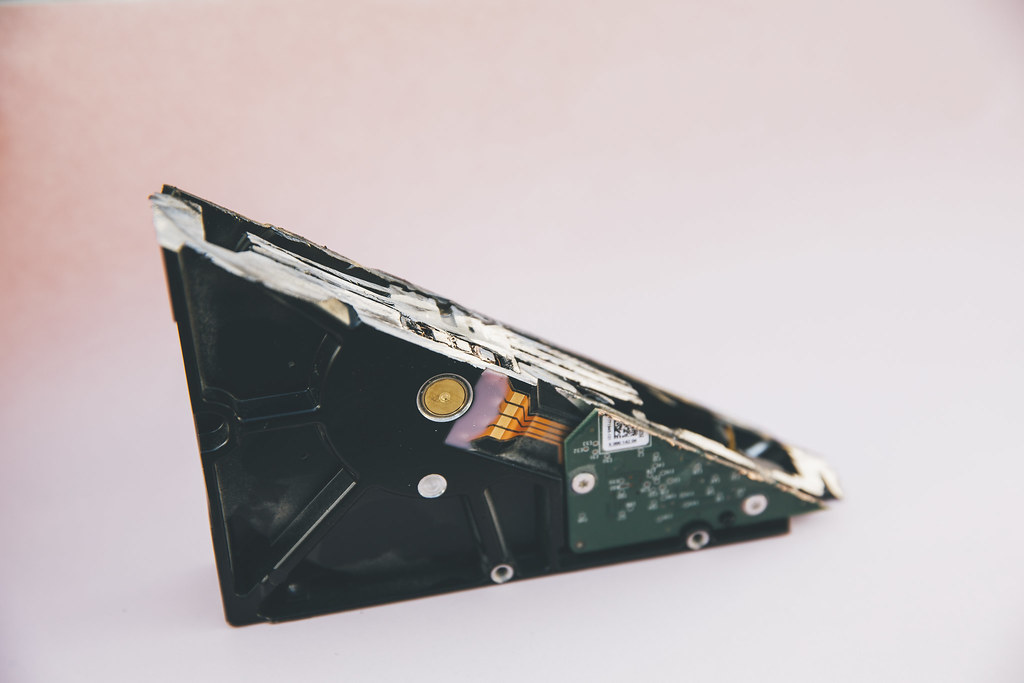
Photo credit: “broken hdd storage backup” by markus spiske, licensed CC0 (https://creativecommons.org/publicdomain/zero/1.0/). Source: https://www.flickr.com/photos/125167502@N02/48256489697