Two USB-C cables can sit next to each other on a shelf, look completely identical, plug into the exact same ports, and still differ in data speed by a factor of 250. That’s not an exaggeration: the slowest common USB-C cable moves data at 480 Mbps, while a Thunderbolt 5 or USB4 80Gbps cable moves it at up to 80 to 120 Gbps.
Table of Contents
Understanding why this happens, and how to actually tell the difference before buying, is worth five minutes of reading given how expensive the wrong assumption can get.
USB-C Is a Shape, Not a Speed
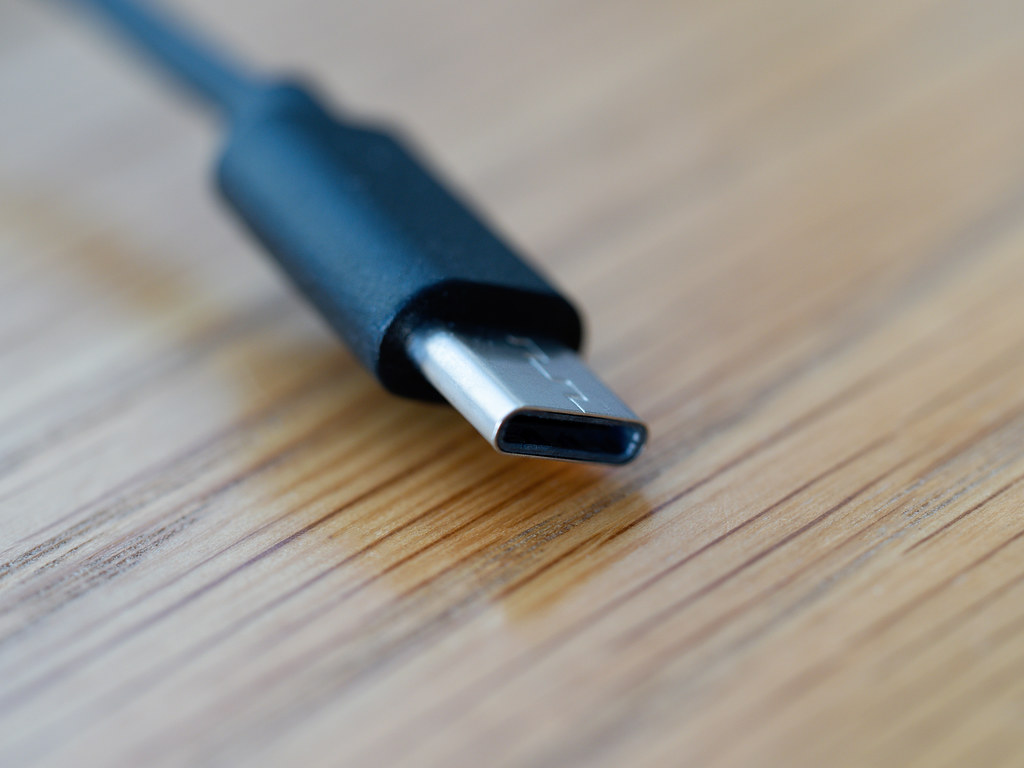
The single most important fact to internalize: USB-C describes the physical connector’s shape, nothing else. Thunderbolt 4 and Thunderbolt 5 both use the USB-C connector, and so does USB4, and so does the cheapest charging-only cable sold at a gas station checkout counter. A port or cable being “USB-C” tells you it fits the plug shape and nothing about what data speed, power delivery, or video output capability lives behind that shape.
That single point of confusion is the root of nearly every cable-buying mistake in this category.
The Actual Speed Tiers, as of 2026
As of 2026, the current Thunderbolt generation is Thunderbolt 5, running up to 120 Gbps. The USB high-speed family sits alongside it with USB4 20Gbps, USB4 40Gbps, and USB4 80Gbps tiers, with USB4 80Gbps matching Thunderbolt 5’s top speed at the 80 Gbps mark before Thunderbolt 5 pulls further ahead at its full 120 Gbps rate. Thunderbolt 4, still common on hardware from the last few years, tops out at 40 Gbps.
At the bottom of the range, a basic USB-C cable with no additional certification can be as slow as 480 Mbps, meaning the fastest cable in this lineup is roughly 250 times faster than the slowest one that fits the exact same port.
Power Delivery Is a Completely Separate Spec
It’s worth being direct about a second, equally common point of confusion: charging speed and data speed are entirely independent specs on a USB-C cable, and a cable can be strong on one and weak on the other. Power delivery splits into two common tiers, cables rated for 60 watts or 240 watts, and that rating has no fixed relationship to data speed.
A cable can be rated for 240 watts of charging power while only supporting USB 2.0-level data transfer, and conversely a 40 Gbps data cable can top out at just 60 watts for charging. Buying a cable based on its charging wattage alone tells you nothing about whether it’ll actually deliver fast file transfers or an external monitor connection, and vice versa.
Why You Genuinely Can’t Tell by Looking
This isn’t a case of reading the cable carefully enough; the physical cable and connector look the same across nearly the entire speed and power range described above. There’s no visual cue, no different plug shape, no color universally standardized across manufacturers that reliably indicates a cable’s actual capability.
The only way to know what’s genuinely inside a given cable is checking the packaging, the product listing, or a printed marking on the cable itself, none of which are reliably present on cheaper or older stock.
What to Actually Look For
A few concrete checks that cut through the ambiguity directly:
- Look for the Thunderbolt logo printed on the cable or connector itself, a small lightning-bolt icon, which is the most reliable single indicator that a cable meets Thunderbolt’s certification requirements rather than a generic USB-C spec.
- Check for explicit speed labeling like “USB4 80Gbps” or “USB 40Gbps” on the packaging or product listing, rather than relying on vague marketing language like “high-speed” or “fast charging” that carries no standardized meaning.
- Confirm vendor documentation specifically references USB4 Version 2.0 or the relevant Thunderbolt generation if the listing doesn’t state a plain speed number, since some manufacturers document capability through the underlying standard name instead of a headline Mbps or Gbps figure.
- Treat charging wattage and data speed as two separate numbers to verify independently, checking both a cable’s power delivery rating (60W or 240W) and its data speed rating before assuming a fast-charging cable also transfers data quickly, or the reverse.
Video Output Adds a Third Layer of Confusion
Beyond data speed and charging wattage, a USB-C or Thunderbolt cable’s ability to carry a video signal to an external monitor is a third, separately-rated capability that doesn’t automatically follow from either of the other two. A cable can be perfectly capable of fast data transfer while offering limited or no DisplayPort Alt Mode video support, which is the specific feature that lets a USB-C cable carry a monitor’s video signal at all.
Thunderbolt cables generally include reliable video support as part of their certification, but a plain USB4 or USB-C data cable isn’t guaranteed to carry video the same way, and checking a listing’s video bandwidth claim (a specific resolution and refresh rate combination, like 8K at 60Hz or 4K at 240Hz) separately from its data speed number is worth doing before assuming any fast cable will also drive an external display properly.
The New Labeling Scheme Meant to Fix This
The USB-IF, the industry group that governs USB standards, introduced a newer labeling scheme specifically to address this long-standing ambiguity, the same kind of confusion that plagued USB 3.0/3.1/3.2 naming for years before it. Under the newer system, cables are meant to be marked explicitly as USB 40Gbps, USB 80Gbps, or USB 240W, stating the actual number rather than a version label that requires looking up what it means.
That’s a real improvement over the previous generation of naming, but it depends on manufacturers actually adopting the clearer labels consistently, and plenty of existing inventory predating the new scheme is still on shelves without it, meaning the older manual-checking habits above remain necessary for the near term regardless of how good the new standard looks on paper.
The Length Problem Nobody Warns You About
There’s a second, less-known wrinkle that trips up buyers who’ve already learned to check the speed rating: a cable’s length directly affects how fast it can actually go, even among cables with the identical printed speed rating. A passive Thunderbolt 3 cable at 0.8 meters carries a full 40 Gbps, but the same passive cable stretched to 2 meters drops to just 20 Gbps, half the rated speed, purely because signal integrity degrades over distance at higher data rates.
For the newest 80 Gbps tier, passive cables are only available in short lengths, roughly 1 foot, 1.6 feet, and 3.3 feet, specifically because passive copper can’t reliably carry that much data any further. Getting real 80 Gbps or 120 Gbps performance over a longer run requires an active cable, one with built-in signal-boosting electronics (Intel calls the specific component a “retimer”) that amplifies the signal partway through the cable’s length to prevent that same degradation.
Active cables cost more and are usually clearly labeled as active, but the practical lesson is the same: buying the right speed rating isn’t sufficient on its own if the cable is also longer than that rating’s passive-length limit supports.
Why This Matters More Than It Might Seem
A cable mismatch isn’t just an inconvenience; it’s a genuinely common, invisible source of frustration when a new laptop or external drive underperforms for no apparent reason. Someone connecting an external SSD capable of multi-gigabyte-per-second transfer speeds through a cable that actually caps out at USB 2.0 levels will see dramatically slower performance with no error message or obvious explanation, since the connection still works, just far below the hardware’s real capability.
The same applies to external monitors: a cable that can’t carry enough bandwidth for a higher resolution or refresh rate will either fail to connect the display at all or silently downgrade it, leaving a buyer troubleshooting a “broken” monitor or laptop that’s actually working exactly as the cable allows.
Sources: Aggregated 2026 USB and Thunderbolt standards reporting from Tom’s Hardware and the USB Implementers Forum’s labeling documentation, cross-checked across multiple sources.
Related Reading
- Wi-Fi 7 Routers Cost Up to 80% More Than Wi-Fi 6E. Here’s Who Actually Needs One.
- That Projector’s ‘3,000 Lumens’ Might Actually Be 180. Here’s the Number That Matters.
- Why Every New Laptop Is Getting a USB-C Port, Even Outside Europe
Further reading: USB-C (Wikipedia), Thunderbolt (Wikipedia).
Photo credit: “USB C Cable End” by Brett Jordan, licensed BY (https://creativecommons.org/licenses/by/2.0/). Source: https://www.flickr.com/photos/55497864@N00/48727128151