
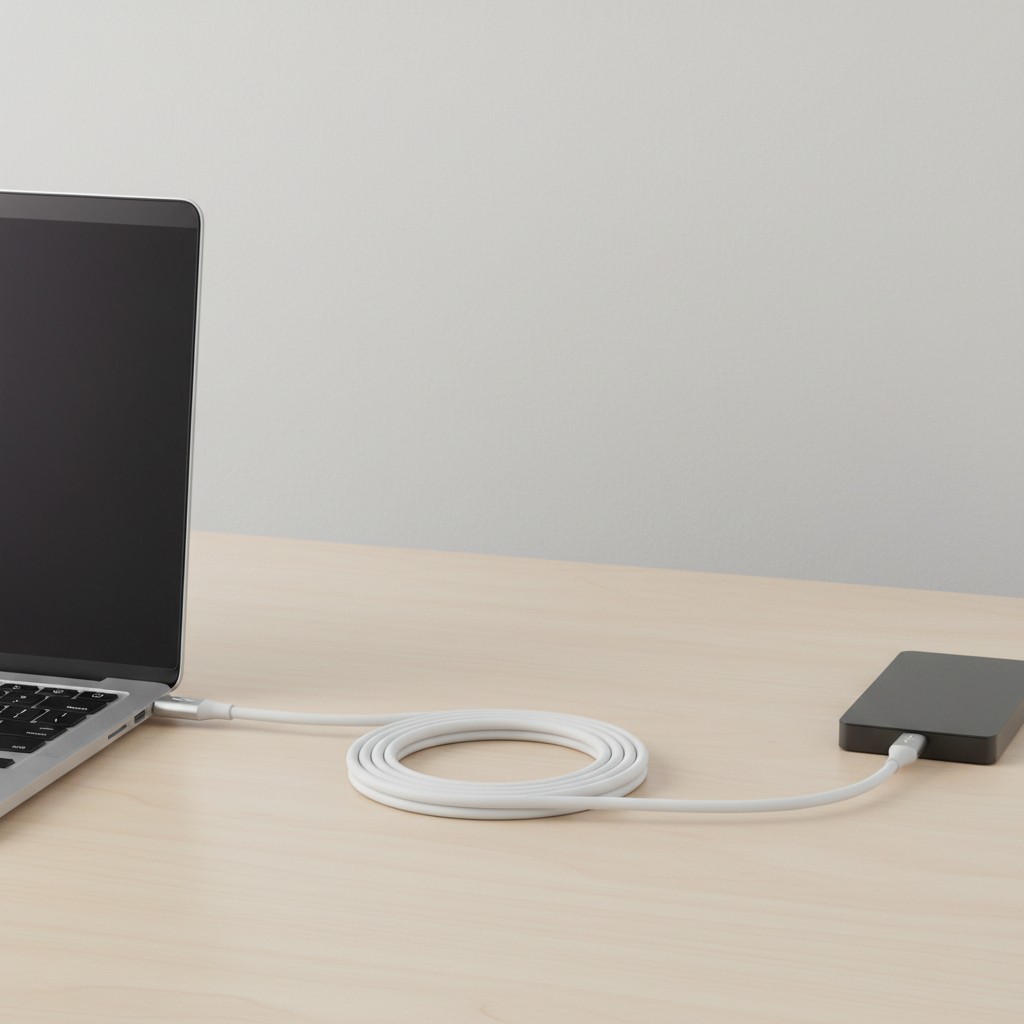
USB Extender: Key Takeaways
- A USB extender category includes passive cables, active cables, and Ethernet-based models, each with different distance limits and data-versus-power tradeoffs.
- Passive USB extender cables exceeding spec-rated lengths risk intermittent dropouts, and daisy-chaining them breaks compliance.
- Active USB extender models using repeater chips or Ethernet cabling can reach hundreds of feet at full 5Gbps.
- Check charging wattage and data speed separately before buying, since a USB extender fast at one may sacrifice the other.
Anker sells a 10-foot USB extension cable rated for 240W of charging power. That same cable tops out at 480Mbps for data, a fraction of what a modern external drive or webcam needs. Icron sells an extender that pushes a full 5Gbps of data over more than 300 feet of cable, and it delivers just 6 watts of power to whatever’s plugged in at the far end.
Table of Contents
Neither product is defective or mislabeled; they’re built for different jobs, and the person who buys one expecting the other is the actual failure mode behind most “USB extenders don’t work” complaints.
Extenders Work, But Not As One Universal Category
USB extenders genuinely do work, extending both cable reach and, in the right configuration, power delivery well past a device’s native limits. The catch is that “USB extender” isn’t one product with one spec sheet; it’s a category split between passive cables, active cables with built-in repeater chips, and extenders that convert the signal to run over Ethernet cabling entirely.
Each has a different job, a different distance ceiling, and in a lot of real listings, a data-versus-power tradeoff that isn’t obvious from the product title.
What Passive Cables Can Reach Before They Fail
A passive extension cable, no electronics inside, just wire, is limited by the USB specification itself, not by how well it’s built. USB 2.0 passive cables are rated for roughly 16 feet (5 meters) before signal degradation becomes unreliable. USB 3.x passive cables have a much shorter leash: around 10 feet (3 meters). Push a passive cable past its spec-rated length and the failure isn’t usually total silence; it’s the more frustrating kind of intermittent dropout, a device that works sometimes, disconnects randomly, or negotiates down to a slower connection speed without any error message explaining why.
Daisy-chaining two or more passive extensions to reach further compounds this rather than solving it: it breaks USB specification compliance outright and is a common, easily avoidable cause of the “it worked for five minutes then died” experience.
Where Active Extenders Take Over
Past a passive cable’s length ceiling, active extenders, which contain a repeater chip that regenerates the signal partway along the cable, take reach much further. StarTech sells an active USB 3.2 Gen 1 cable rated for 33 feet at a full 5Gbps, and two of them can reportedly be daisy-chained for roughly 66 feet total, a case where chaining is actually supported by the product design rather than an unsupported workaround.
Icron’s Raven 3104 goes considerably further: up to 328 feet using CAT 6a or CAT 7 network cabling, still holding 5Gbps. That category, USB extended over Ethernet-style cabling, is genuinely how most long-distance, high-bandwidth USB runs get solved in practice, not through progressively longer copper USB cable.
The Trap: Fast Charging and Fast Data Are Sold Separately
This is the part a generic “how long can a USB cable be” article skips, and it’s the single most common reason someone buys an extender and feels like it “doesn’t work”: there’s no guarantee that a cable or extender fast at one job is fast at the other. USB Power Delivery now supports up to 240 watts of charging on the right cable, but a cable built to carry that much power isn’t automatically built to carry high-speed data alongside it, and the reverse is just as common.
The Anker and Icron examples above aren’t edge cases; they’re representative of how these products are actually specced and sold. Before buying, check the charging wattage and the data speed rating as two completely separate numbers, because the listing photo and the product name will rarely make clear that one of them is being sacrificed for the other.
Hubs and Extenders Solve Different Problems, and Mixing Them Up Costs Money
A lot of what gets shopped for as a “USB extender” is really a USB hub, and the two solve genuinely different problems. An extender takes one USB port and moves its full functionality further away. A hub takes one USB port and splits it into several, usually without adding any distance at all.
Buying a hub expecting extension, or an extender expecting extra ports, is its own common source of “this doesn’t work” reviews that have nothing to do with cable length or signal loss.
Hubs bring their own spec trap worth knowing before buying: USB’s power budget is shared. An unpowered hub, one without its own AC adapter, splits a single port’s power budget (typically 500mA on USB 2.0, more on USB 3.x) across every connected device. Plug in more than one or two power-hungry peripherals, an external hard drive or a charging phone alongside a webcam, and an unpowered hub will often cause random disconnects or devices that fail to initialize, not because the hub is defective but because there genuinely isn’t enough power to go around.
A powered hub, one with its own wall adapter supplying each port independently, avoids this entirely and is worth the extra cost the moment more than one or two devices need to stay connected reliably at the same time.
Which Devices Need the Expensive Option
Not every extension purchase needs to solve for bandwidth. A keyboard, mouse, or basic USB drive barely touches USB 2.0’s ceiling, and a cheap passive cable within spec length handles it without issue. Devices that push real bandwidth, external SSDs, webcams (especially anything above 1080p), capture cards, and VR headset sensors, are the ones most likely to expose a cable or extender that’s cutting corners on the data side, whether through a genuinely underspecced product or simply a passive cable stretched past where it stays reliable.
If the device you’re extending falls into that second group, that’s the signal to budget for an active extender rather than the cheapest passive cable in the listing, even if the passive option is rated for a length that looks sufficient on paper.
The USB-C Safety Gap Worth Checking
Passive USB-C male-to-female extension cables deserve specific caution beyond the usual length-limit concerns: they aren’t included in the USB-IF’s own passive cable compliance documentation, meaning there’s no official spec these products are being held to in the first place. That’s a genuinely different situation from a USB-A extension cable, which the spec does cover directly, and it’s worth checking a USB-C extender’s actual certifications rather than assuming “USB-C” on the label means the same compliance guarantees apply.
When the Better Answer Is to Skip USB Entirely
If the actual goal is just getting power to a device that’s far from an outlet, rather than extending both power and data together, a properly rated AC extension cord to a nearby charger is frequently the cleaner, cheaper, and more reliable solution than stretching USB power delivery across a long extender.
USB extenders solve a specific problem: getting a USB-connected device’s full functionality to a location the original cable can’t reach. When power is genuinely the only requirement, running that requirement through USB at all adds cost and failure points a standard extension cord doesn’t have.
Rule Out the Cable and Port You Already Have First
Before buying anything, it’s worth five minutes confirming the problem is actually the distance or the cable, and not the USB port itself. Try the same peripheral on a different port on the same computer, ideally one wired directly to the motherboard rather than through a front-panel header or an existing hub, since front-panel USB headers are a well-documented source of exactly the same intermittent-dropout symptoms an underspecced extender causes.
If the device behaves identically on a known-good port with its original short cable, the extender or cable is the actual problem and the buying guide above applies. If the same flakiness shows up on multiple ports, the issue is more likely the peripheral, its driver, or a Windows power-management setting turning the port off to save energy, none of which a better extension cable will fix.
A Short Checklist Before Buying
Match the extender type to the actual distance: passive within spec length for anything close, a single active copper extender for a longer run (up to roughly 33 feet per cable, further if the product specifically supports daisy-chaining), and USB-over-Ethernet for anything beyond what active copper extenders reach, since that’s the category built for runs measured in hundreds of feet rather than tens.
Check data speed and power wattage as two separate, independently verified numbers rather than trusting a single headline spec. Skip daisy-chaining passive cables. And if a USB-C passive extension is the option under consideration, verify it against USB-IF’s actual compliance list rather than assuming the connector type alone guarantees the cable is properly built.
Bottom Line
A USB extender solves moving a device’s full functionality beyond its native cable length, but only if you match its data and power ratings to your device. Before purchasing, test your peripheral on a different motherboard-wired port to confirm the issue is distance, not the port.
Further reading: Original reporting: engadget.com.
Related Reading
- Why Every New Laptop Is Getting a USB-C Port, Even Outside Europe
- Every Laptop Ad Says ‘AI PC’ Now. Here’s What That Actually Buys You.
- Wireless Keyboards Finally Caught Up to Wired. Here’s the Proof.